Guides
How to Transcribe Audio to Text on a Mac (Video Subtitles Too)

You have a recording and you need the words. Maybe it’s a client call, a lecture, an interview you’re writing up, or a video that needs subtitles before it goes on YouTube, and typing it out by hand means pausing and rewinding every few seconds for far longer than the recording runs. Nobody enjoys that.
Your Mac can turn speech to text for you now. It doesn’t have to send the audio anywhere either. Here’s the free built-in way, the way I use for everything else, and an honest test of how good it really is.
Voice Memo to Text: Already Built Into Your Mac
People miss this one. On a Mac with an M1 chip or later, running macOS 15 or newer, Voice Memos transcribes every recording you make in it. Click the recording, then the transcript button, and you can select the text and copy it out; Notes does the same for audio you record inside a note, and even lets you copy the whole transcript in one go.
The limit is the word “in”. Both apps only transcribe what they recorded themselves. They won’t take the MP3 a colleague emailed you, a Zoom recording, or a video, and neither one makes subtitle files. That’s the gap the rest of this post is about.
MP3, M4A or Video to Text: TeraConvert
I build TeraConvert, a file converter for the Mac that does its work on your machine instead of on some server. Since version 1.8 it can turn speech into text. Under the hood it uses the same speech model Apple built into macOS 26, the one behind those Voice Memos transcripts. Nothing gets uploaded, and there’s no model of mine for you to download.
Drop the file in
Any audio or video the app can open: MP3, M4A, WAV, FLAC, MP4, MOV, MKV and the rest. Or click Transcribe audio in the sidebar.
Pick what you want back
TXT for plain text, DOCX for Word, SRT or VTT for subtitles. They all sit under Document in the format list.
Say what language is spoken
The app starts on your Mac's own language and remembers what you pick. Then press Convert.
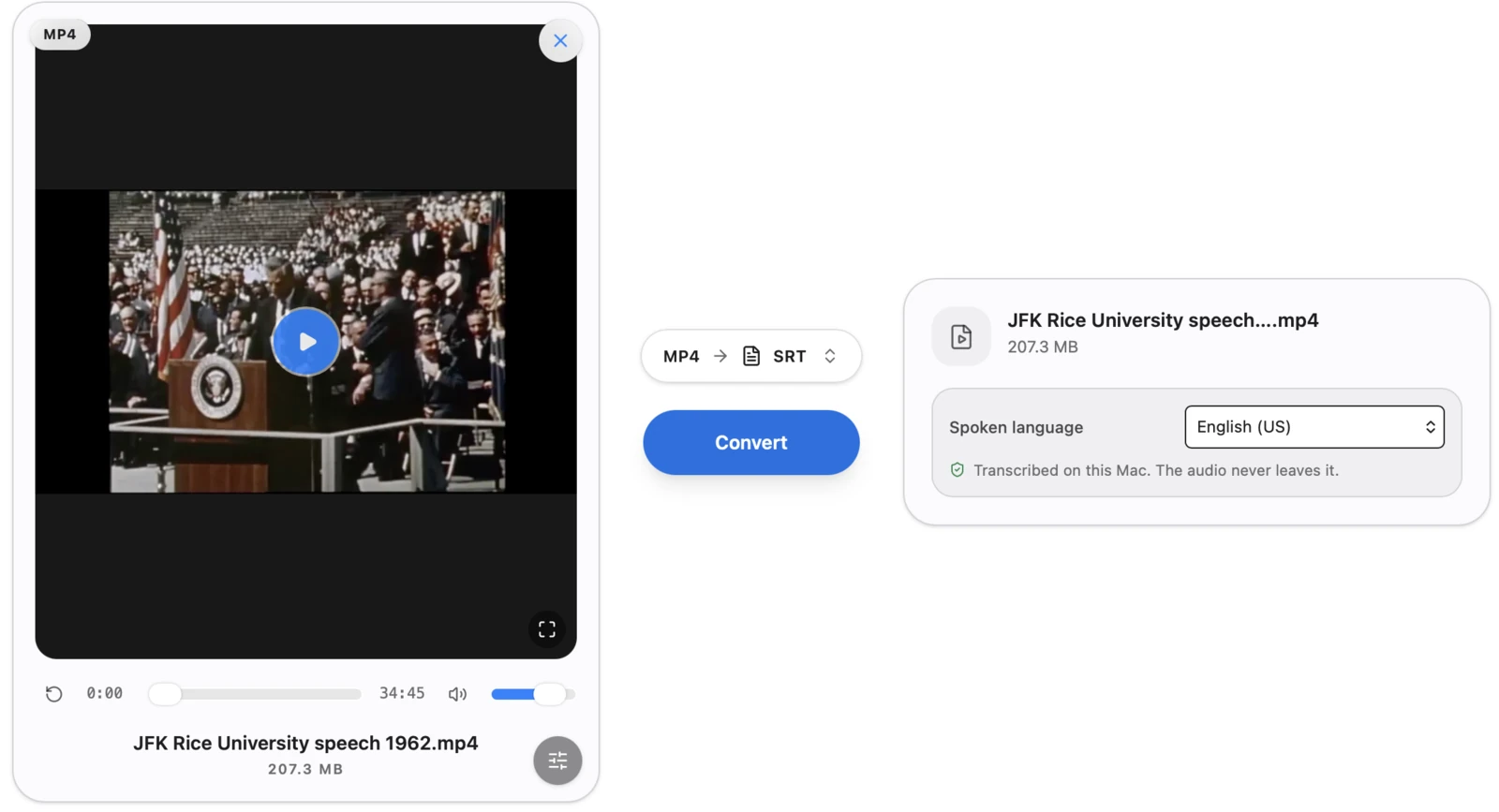
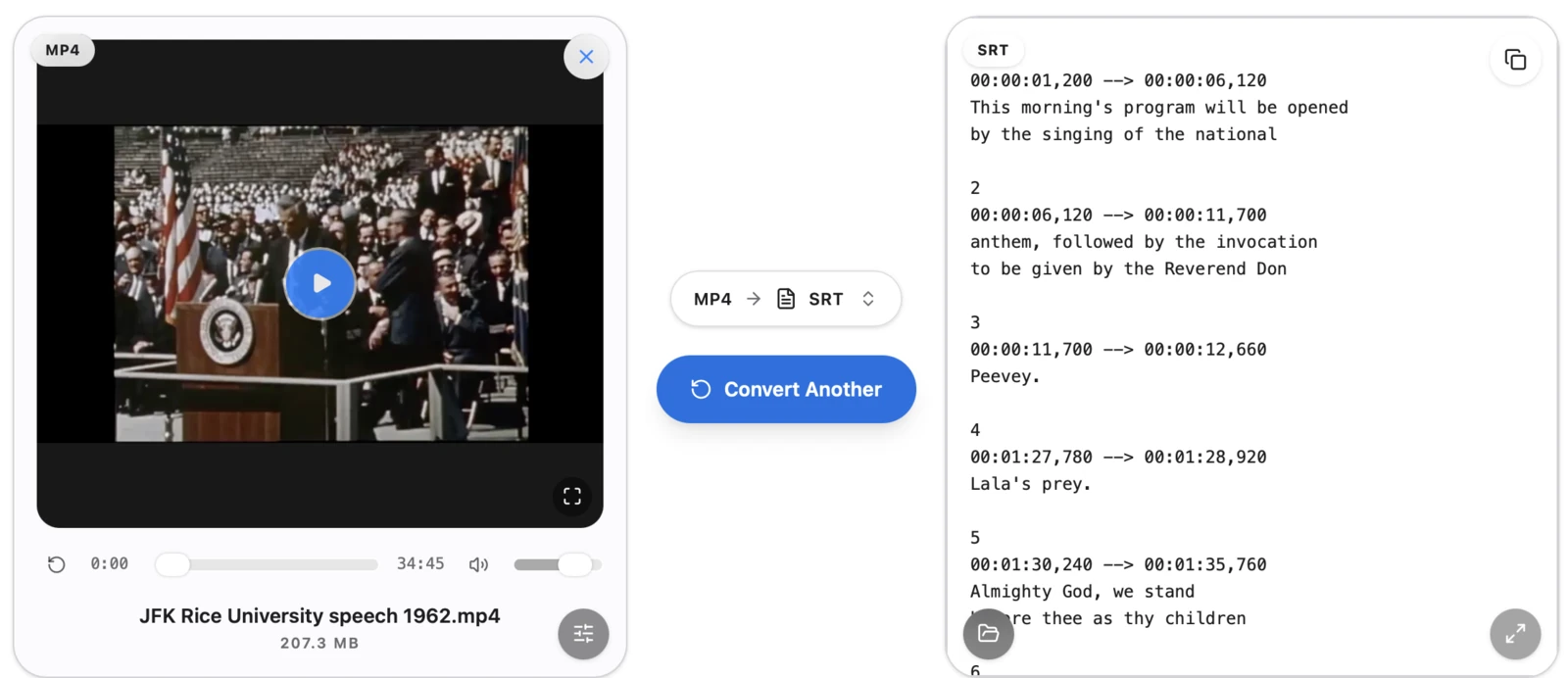
Your first conversion is free, no account needed, and a transcript counts as one. After that it’s a one-time purchase, not a subscription. You need macOS 26 or later; on an older version the transcript formats simply don’t show up in the list.
I Tested It on a Speech From 1962
Clean studio audio makes every transcription tool look good. I wanted a hard test. So I used NASA’s public domain video of John F. Kennedy’s “We choose to go to the Moon” speech at Rice University. It’s a 207 MB MP4 that runs 34 minutes 45 seconds, recorded in an open stadium in 1962, with a public address system echoing and a crowd that keeps interrupting.
On my MacBook Pro with an M5 Pro chip, the app pulled the sound out of the video in about one second and transcribed it in about 18 more. Then I checked it against the official text of the speech. Of the 2,223 words Kennedy was meant to say, 95.7% came out right.
Measured
34:45 of video, subtitles in about 20 seconds
Thirty-five minutes of 1962 audio, turned into subtitles in about twenty seconds. The file never left my Mac.
It isn’t perfect, and I’d rather show you where it slips. This is the famous line, straight from the SRT file it wrote:
248
00:23:06,420 --> 00:23:12,240
We choose to go to the moon in this decay
and do the other things, not because they

249
00:23:12,240 --> 00:23:18,240
are easy, but because they are hard,
because that goal will serve to
“Decade” became “decay”. Elsewhere, “distinguished guests” turned into “extinguished guests”, and Rice’s president Kenneth Pitzer became “President Tetzer”. Names and words that sound like other words are where it trips, same as every speech model I’ve tried. So if you’re quoting someone in print, read the transcript against the recording first. For notes, search and subtitles, it’s more than good enough.
Generate Subtitles From a Video: SRT or VTT?
Both are plain text files with a timestamp on each line. If in doubt, pick SRT. YouTube takes it, and so do VLC, IINA, Final Cut Pro and most editing apps. VTT is the one web video players want, the format a website’s <track> tag reads.
The app keeps every subtitle to two lines at most, and it uses the timing of each word to split a long sentence into pieces a viewer can actually keep up with. Want the text without timestamps, say for show notes or a blog post? Pick TXT, which breaks it into paragraphs wherever the speaker pauses. Pick DOCX and you get the same thing as a Word document.
Which Languages Work
Apple’s model covers ten languages, in 30 regional versions on my Mac: English, Spanish, French, German, Italian, Portuguese, Japanese, Korean, Mandarin Chinese and Cantonese, with English alone coming in nine flavors that run from US and UK to Indian, Irish and South African.
It doesn’t detect the language for you, which is why the app asks. Some big ones are missing. Hindi, Arabic and Russian aren’t there yet, for instance. If you need those today, the next section has an option that covers them.
The first file in a new language takes a little longer
When Something Else Is the Better Pick
I’d rather you use the right tool than mine. Only ever transcribing your own voice memos? You’re set. If you need a language Apple doesn’t cover, or labels for who’s speaking, MacWhisper is a good app that also stays on your Mac, and online transcription sites work on any computer too, though your recording has to travel to their servers first and there’s often a monthly plan on top. Where TeraConvert earns its place is speed, and being the same app you already use for every other file.

TeraConvert
Uses Apple's own speech model. 10 languages, no speaker labels. One free conversion, then a one-time purchase.
Voice Memos and Notes
Free and already there on Apple silicon. Won't take an existing file, and there's no subtitle export.
MacWhisper
Runs Whisper locally. The free version exports SRT and VTT and covers 100 languages. Pro is a one-time €64.
Questions People Ask
Does my recording get uploaded anywhere?
No. The transcription runs on your Mac from start to finish, and the only thing that ever crosses the network is Apple’s language model, downloaded once the first time you use a language, which is Apple’s file arriving rather than yours leaving.
Is there a free way to transcribe audio on a Mac?
Three. Voice Memos and Notes transcribe their own recordings for free, MacWhisper’s free version handles audio files, and your first transcript in TeraConvert costs nothing either.
Can it tell who’s speaking?
Not yet. You get one stream of text with timestamps and no names on it, so for an interview with two or three people you’ll be adding the names yourself.
Can it translate while it transcribes?
No. You get the words in the language they were spoken, so a Spanish interview comes back as Spanish text, ready for whatever translation tool you already trust.
How do I get a voice memo out of Voice Memos?
Drag it from the list into any Finder folder and you have the .m4a file. I wrote up the details, with screenshots, in how to convert M4A to MP3 on a Mac.
Can I transcribe a whole folder at once?
Yes. Drop several in and the app works through them one by one, which is part of Pro.
Does it work on an Intel Mac or in the browser?
No to both. The Mac app runs on Apple silicon, and transcription needs macOS 26. The converter on this website doesn’t transcribe.
I wanted transcription to work like the rest of the app: any file, on your own Mac, no account and no upload. If it gets a word wrong on something you care about, or you need a language it doesn’t have, tell me through the contact page. I read everything myself.
Your first transcript is free
Audio and video to text or subtitles, on your Mac. Nothing is ever uploaded.


Loved by early users.
All product names, logos, and trademarks are the property of their respective owners. Apple, macOS, Voice Memos, Notes, Final Cut Pro, MacWhisper, YouTube, VLC, IINA and Zoom are referenced here for identification and comparison only. TeraConvert is not affiliated with, endorsed by, or sponsored by any of them. The test video is NASA’s public domain recording of President Kennedy’s address at Rice University, 12 September 1962.