
Organize a PDF
Drag the pages into the order you want and save it. Turn, copy or remove pages on the way. Your file never leaves this device.
Choose a PDF
Or drop one here.From your files, downloads, or wherever it landed.
Your file stays on this device
- Never uploaded
- Drag to reorder
- First download free
How to reorder pages in a PDF
Four steps, and the new order is spelled out before you save.
Step 1
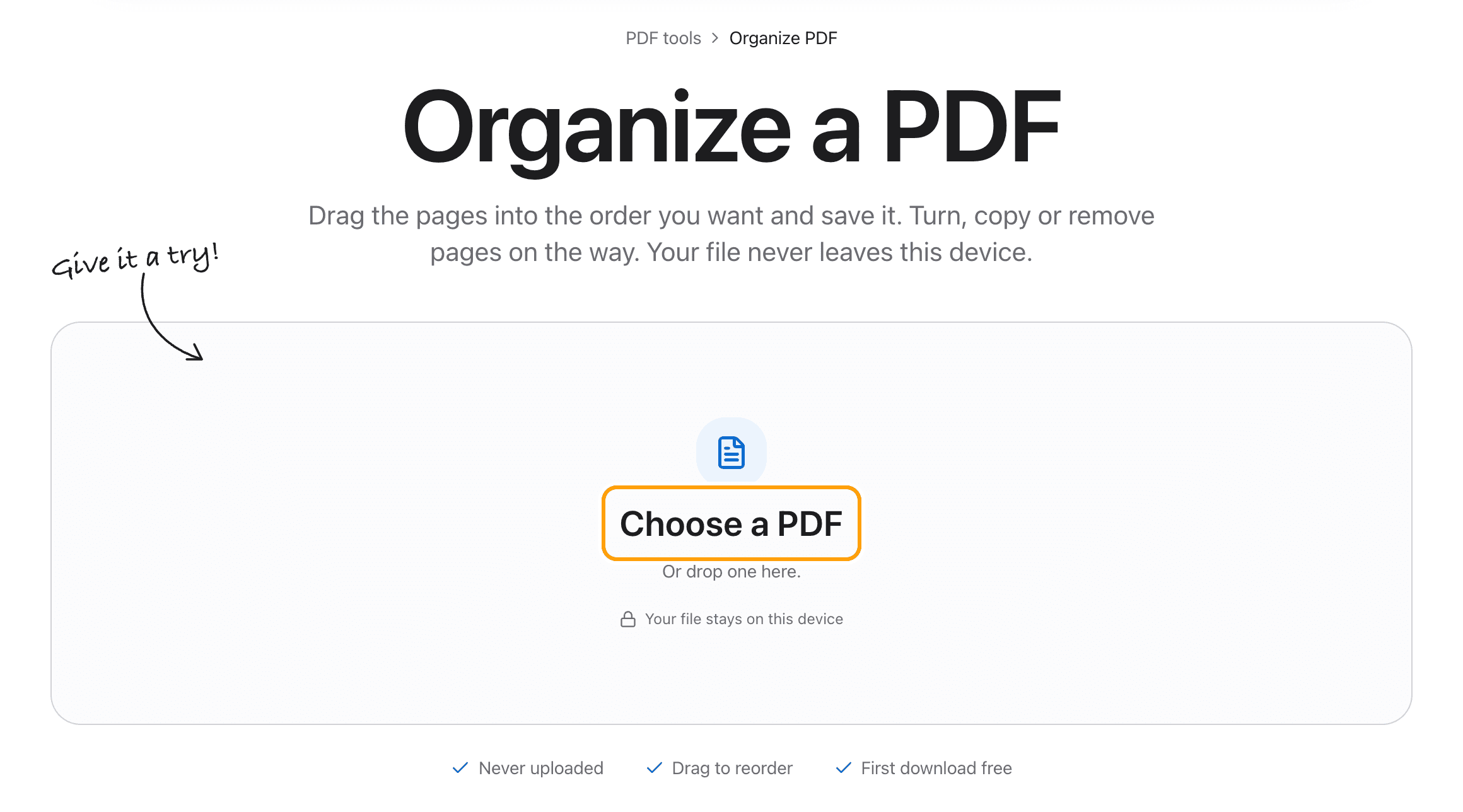
Choose your PDF
Click Choose a PDF, or drop the file anywhere on this page.
Every page shows up as a thumbnail you can pick up and move. Nothing is sent to a server.
Step 2
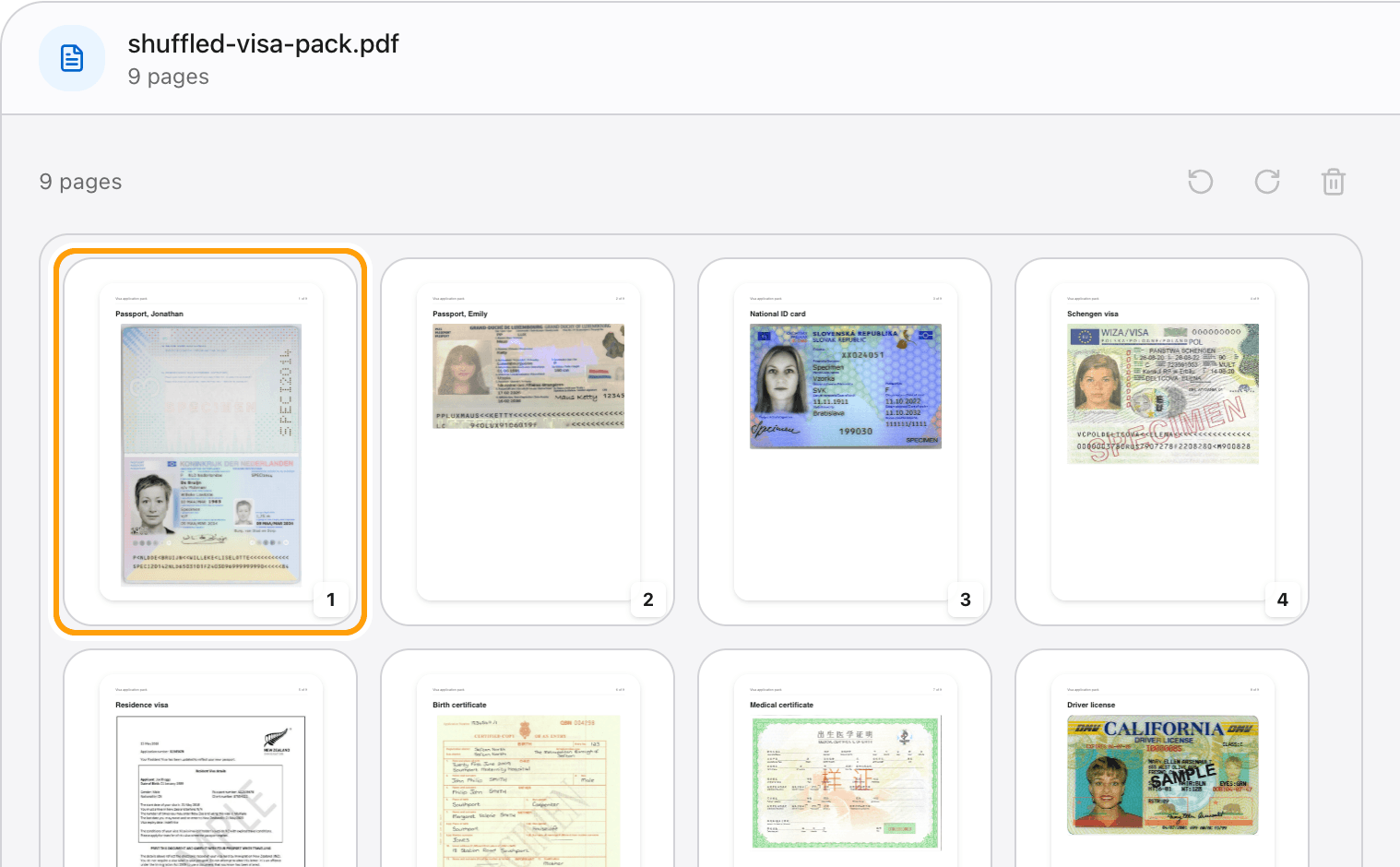
Drag pages into order
Grab a page by its handle and drop it where it belongs. The other pages make room as you move.
Here, a visa application pack came together with the first passport at the very back. One drag puts it at the front.
Step 3
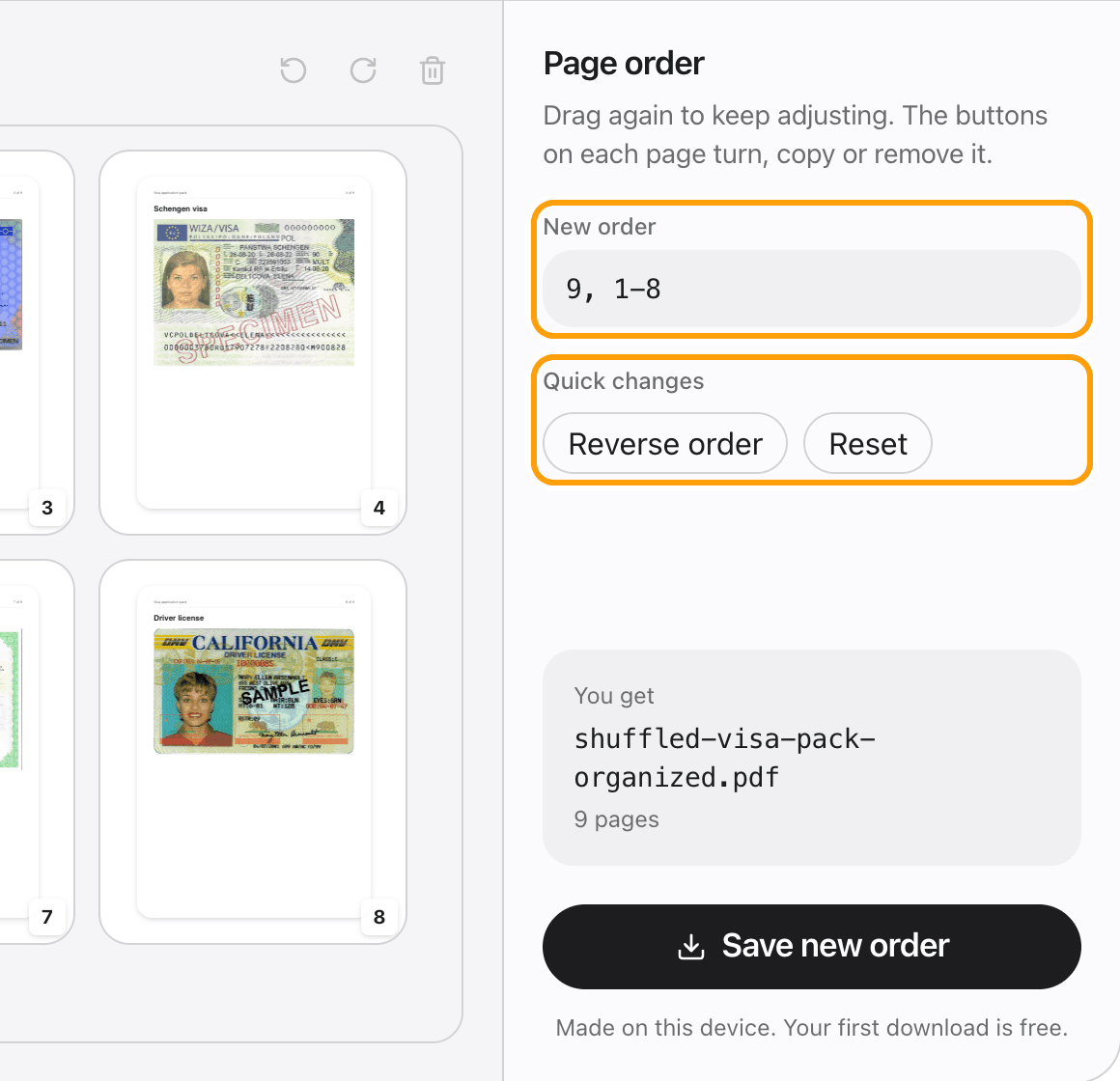
Check the new order
The panel writes the order out in page numbers, so after a few drags you can still tell what went where.
Reverse order flips the whole document in one click, and Reset puts every page back.
Step 4
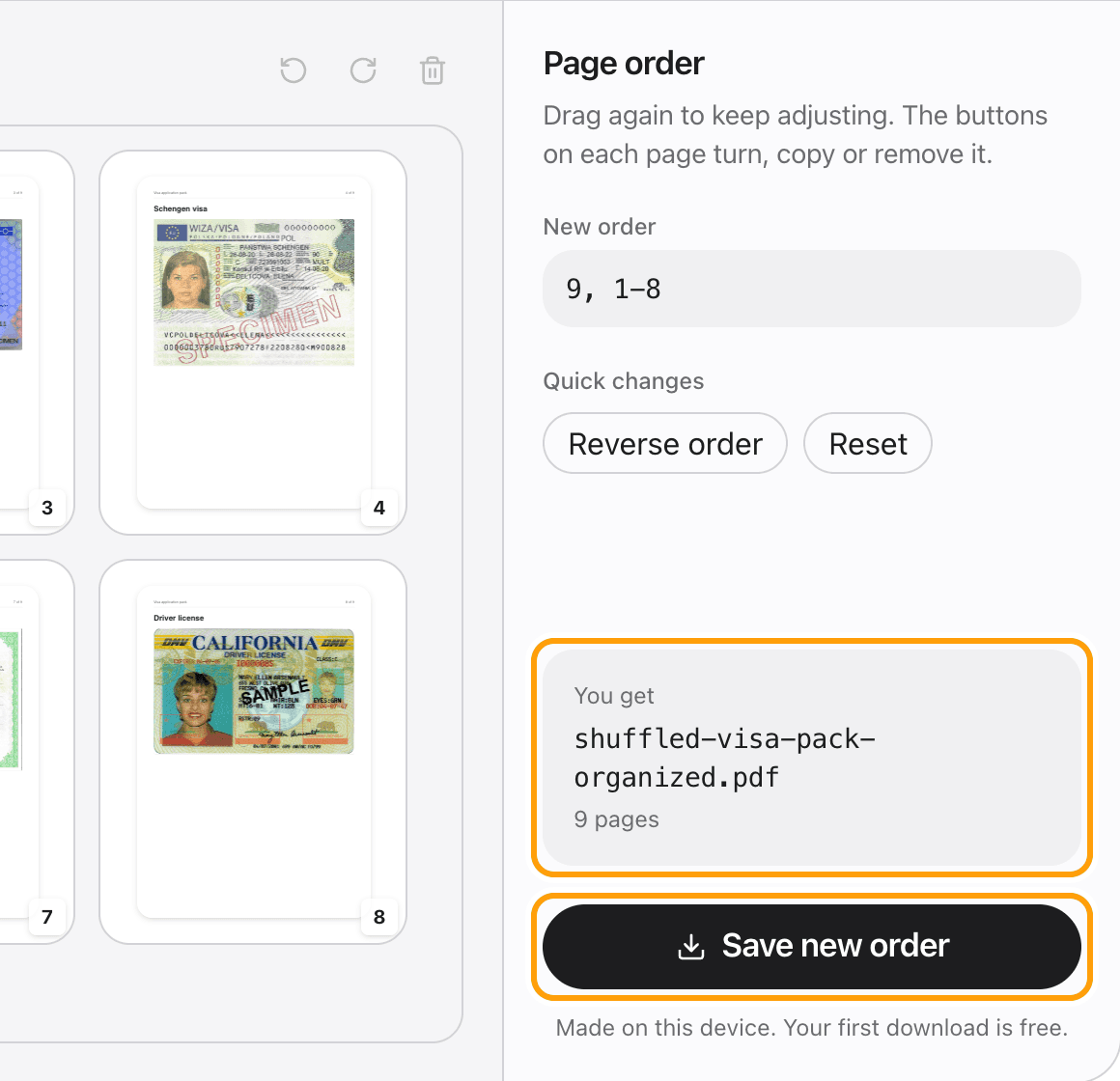
Save the new order
Click Save new order and the reordered PDF saves to your device.
Pages are copied exactly as they were, so text stays sharp and selectable and nothing is recompressed.
Ways to organize
Move a page to the front
Drag it to the first spot. Every other page keeps its order behind it.
Reverse the page order
Reverse order flips the document, which is how you fix a stack that was scanned last page first.
Copy a page
The copy button on a page puts a second copy right after it, for a cover sheet or a form you need twice.
Remove or turn pages while you organize
Each page has buttons to turn it or remove it. Select several with Shift-click and use the bar above the pages to do them all at once.
Reorder pages on an iPhone or iPad
Press and hold a page for a moment, then drag it. It works the same in Safari and Chrome.
Put several PDFs in order
To combine files and arrange their pages together, use Merge PDF. It opens the same pages view with room to add more files.
Questions
How do I rearrange pages in a PDF without uploading it?
Choose your PDF above, drag the pages into the order you want, and click Save new order. It happens in your browser, on your device. The file is never sent anywhere.
Is it free?
Your first download is free, with no account and no watermark. After that, downloading needs Pro, which is a one-time purchase.
Does reordering change the pages?
No. Each page is copied into the new file as it is. Text stays selectable and images are not recompressed.
Can I move several pages at once?
Dragging moves one page at a time. Selecting several with Shift-click lets you turn or remove them together.
Will my bookmarks be kept?
No. Every page comes across in its new order, but the bookmark list is not carried over.
What if my PDF has a password?
Open it in the PDF editor with its password first. A locked file cannot be read until it is unlocked.
Does it work on a Mac, iPhone or Windows?
Yes. It runs in any modern browser. On a touch screen, press and hold a page before you drag it.
Ready to put your pages in order?
Choose a PDFThe same PDF editor, on your Mac
Edit, sign, merge and compress PDFs offline, in their own window, and convert images, video, audio and documents too. Everything stays on your Mac.