
Make a scanned PDF searchable
Read the text in a scanned PDF so you can search, select and copy it. The pages look exactly the same, and the scan never leaves this device.
Choose a PDF
Or drop one here.From your files, downloads, or wherever it landed.
Your file stays on this device
- Never uploaded
- Pages look the same
- First download free
How to OCR a PDF
Four steps, from a picture of text to text you can use.
Step 1
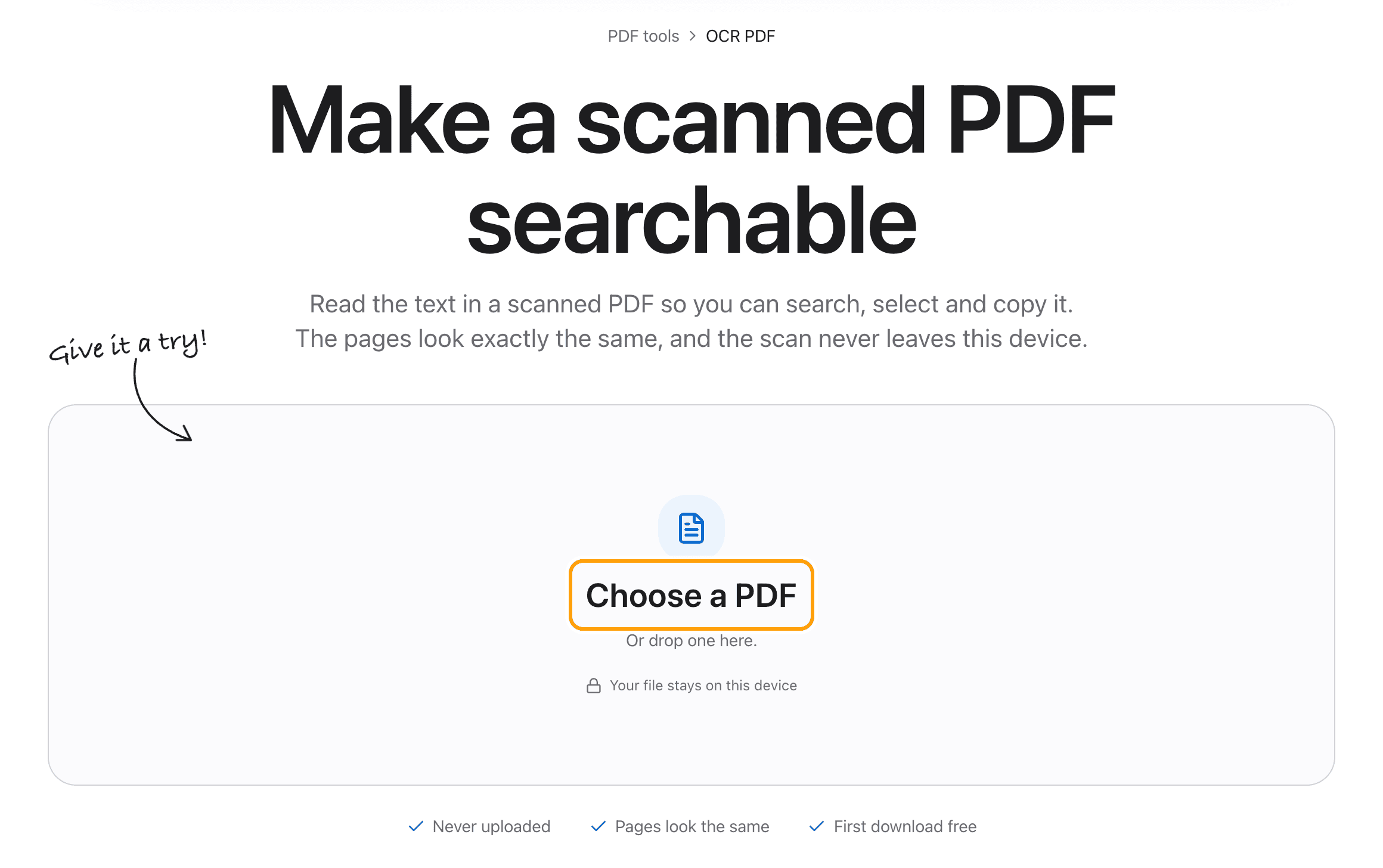
Choose your scanned PDF
Click Choose a PDF, or drop the file anywhere on this page.
It opens here in your browser. The scan is read on your device, which matters when it is a bank statement or an ID.
Step 2
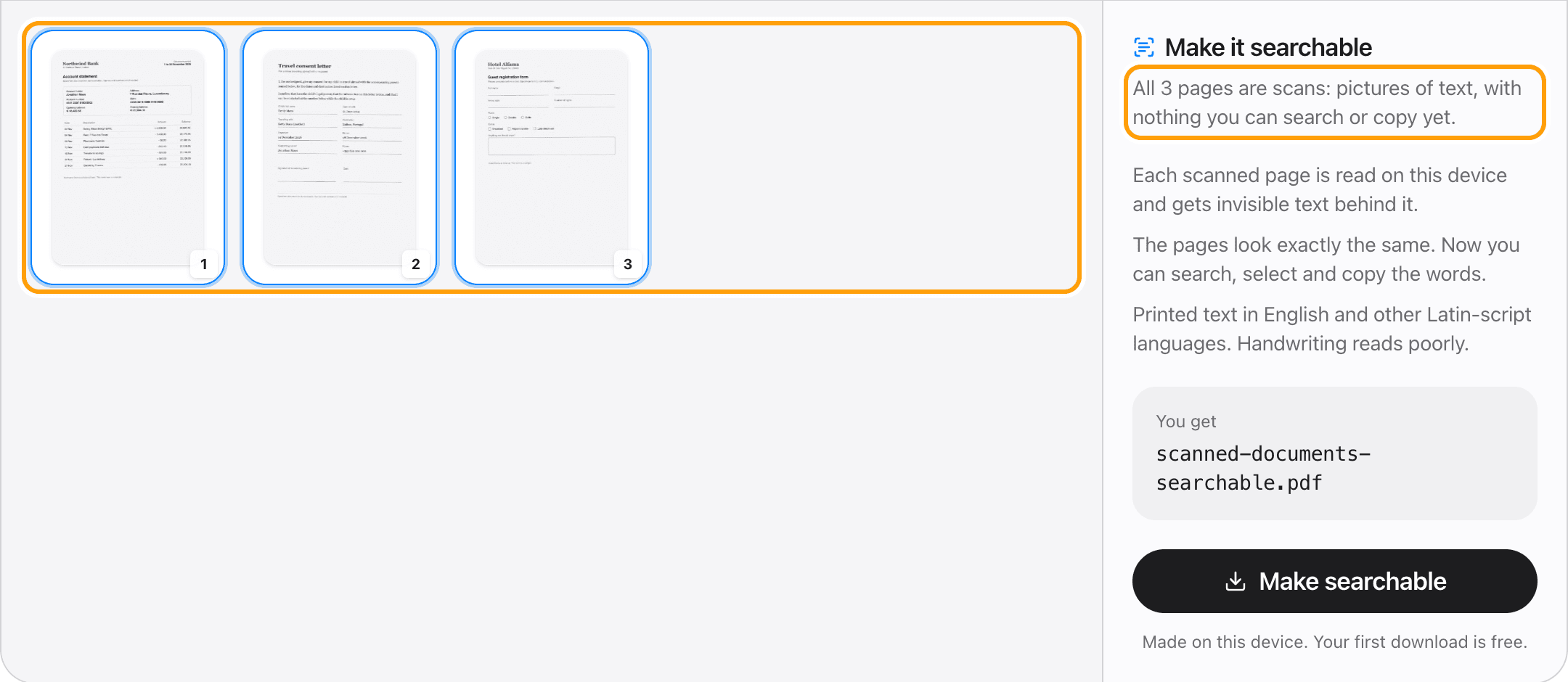
See which pages are scans
Before anything runs, it checks every page and tells you which are pictures of text and which already have text you can copy.
Pages that already have text are left exactly as they are.
Step 3
Make it searchable
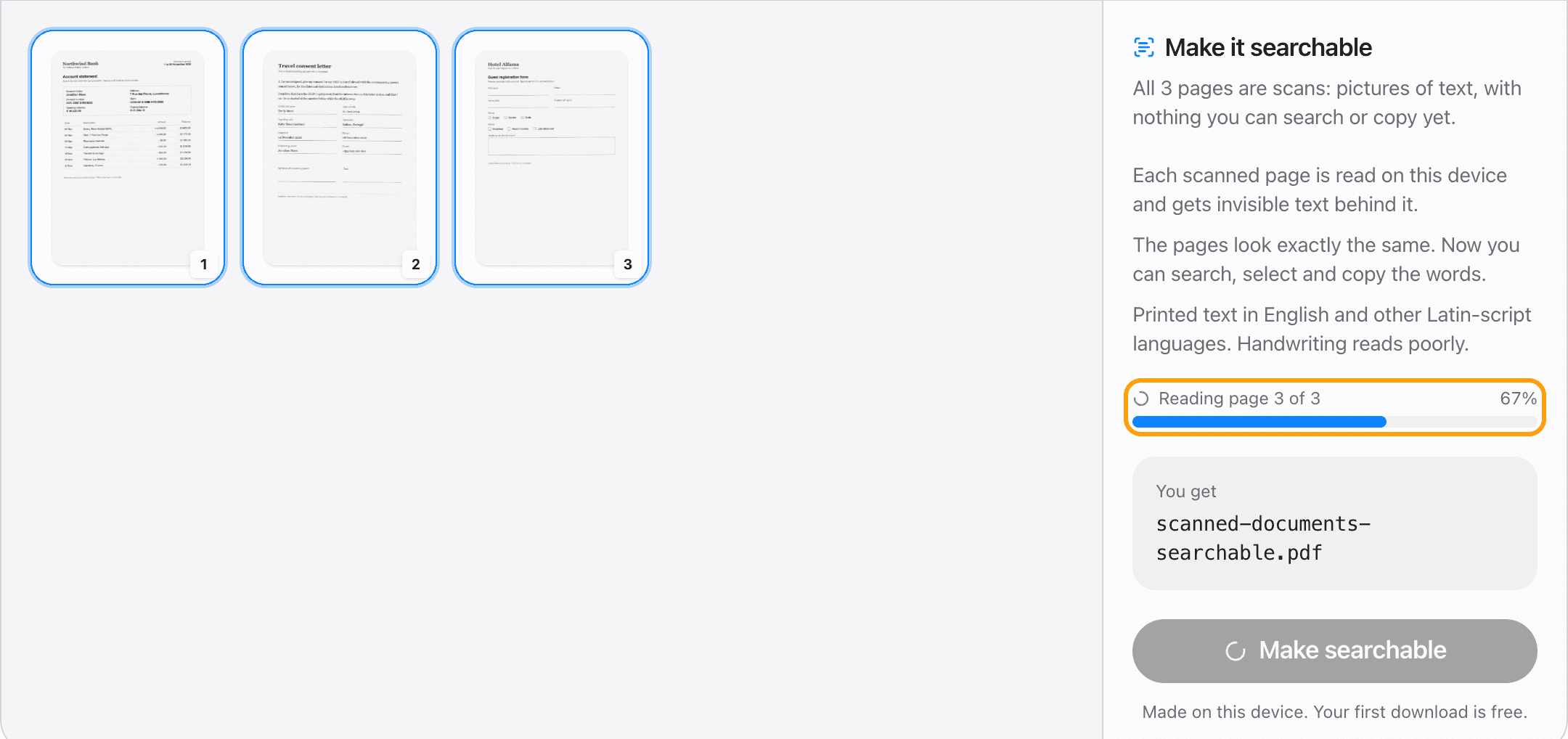
Click Make searchable. Each scanned page is read and gets an invisible layer of text behind it, lined up with the printed words.
You see each page as it is read. A three-page scan takes a few seconds.
Step 4
Search it, copy it, or edit it
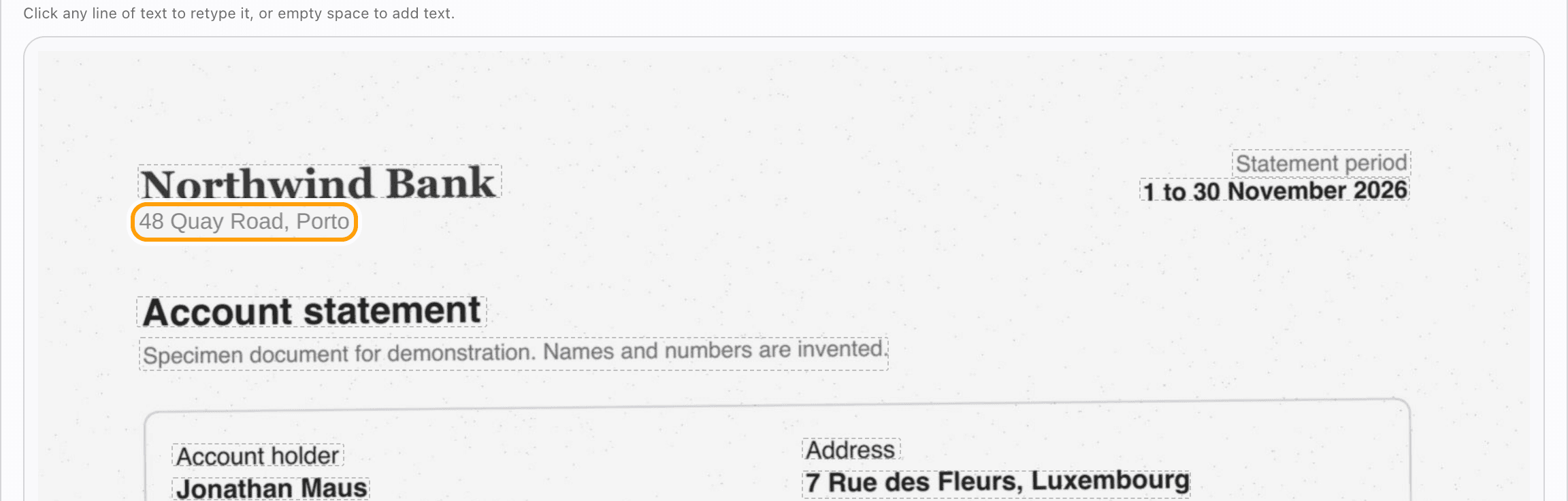
The new PDF looks exactly like the scan, but every line is now real text. Search it, select a sentence, copy an account number.
Open it in the PDF editor and you can retype a line of the scan too. Here the address was changed, in the scan's own ink colour, on its own paper.
Ways to use it
Make a scanned PDF searchable
Every scanned page gets a hidden text layer, so the search box in Preview, Acrobat or your browser finds words on it.
Copy text from a scanned PDF
Once the text layer is in, select a line and copy it like any other PDF.
Edit the text in a scan
Open the searchable PDF in the PDF editor and click a line to retype it. The printed words are covered with the paper's colour and the new ones are written in the ink's.
Just want the text?
PDF to TXT reads a scan straight into a text file instead, and also reads Chinese and Japanese.
PDFs with some scanned pages
Only the pages without text are read. Pages that were already searchable are not touched.
Scans that came out sideways
If a page shows sideways, turn it upright with Rotate PDF first, then read it. Upright text reads best.
Long scans
The browser reads up to 20 pages at a time. For a longer scan, split it into parts with Split PDF and read each one.
Questions
How do I OCR a PDF without uploading it?
Choose your PDF above and click Make searchable. The text recognition runs in your browser, on your device. The scan is never sent anywhere.
Is it free?
Your first download is free, with no account and no watermark. After that, downloading needs Pro, which is a one-time purchase.
How accurate is it?
On a three-page test scan of a bank statement, a letter and a form, 278 of 289 words came back exactly. Most of the rest were two words run together, like 04Nov, which a search still finds.
Does it change how my PDF looks?
No. The text is added as an invisible layer behind the scan. The pages look exactly as they did.
Can I edit the text in a scanned PDF?
Yes, once it has been through OCR. Open the searchable PDF in the PDF editor and click any line to retype it. The old words are painted over in the paper's colour, so it works best on clean scans with a plain background.
Which languages does it read?
Printed English and other languages written in the Latin alphabet. Handwriting reads poorly. For Chinese or Japanese scans, PDF to TXT reads the text into a file.
How many pages can it read?
Up to 20 pages at a time in the browser. Split a longer scan into parts first. TeraConvert for Mac reads scans of any length into a text file, but does not make searchable PDFs.
What if my PDF has a password?
Open it in the PDF editor with its password first. A locked file cannot be read until it is unlocked.
Ready to read your scan?
Choose a PDFThe same PDF editor, on your Mac
Edit, sign, merge and compress PDFs offline, in their own window, and convert images, video, audio and documents too. Everything stays on your Mac.