
Delete PDF pages
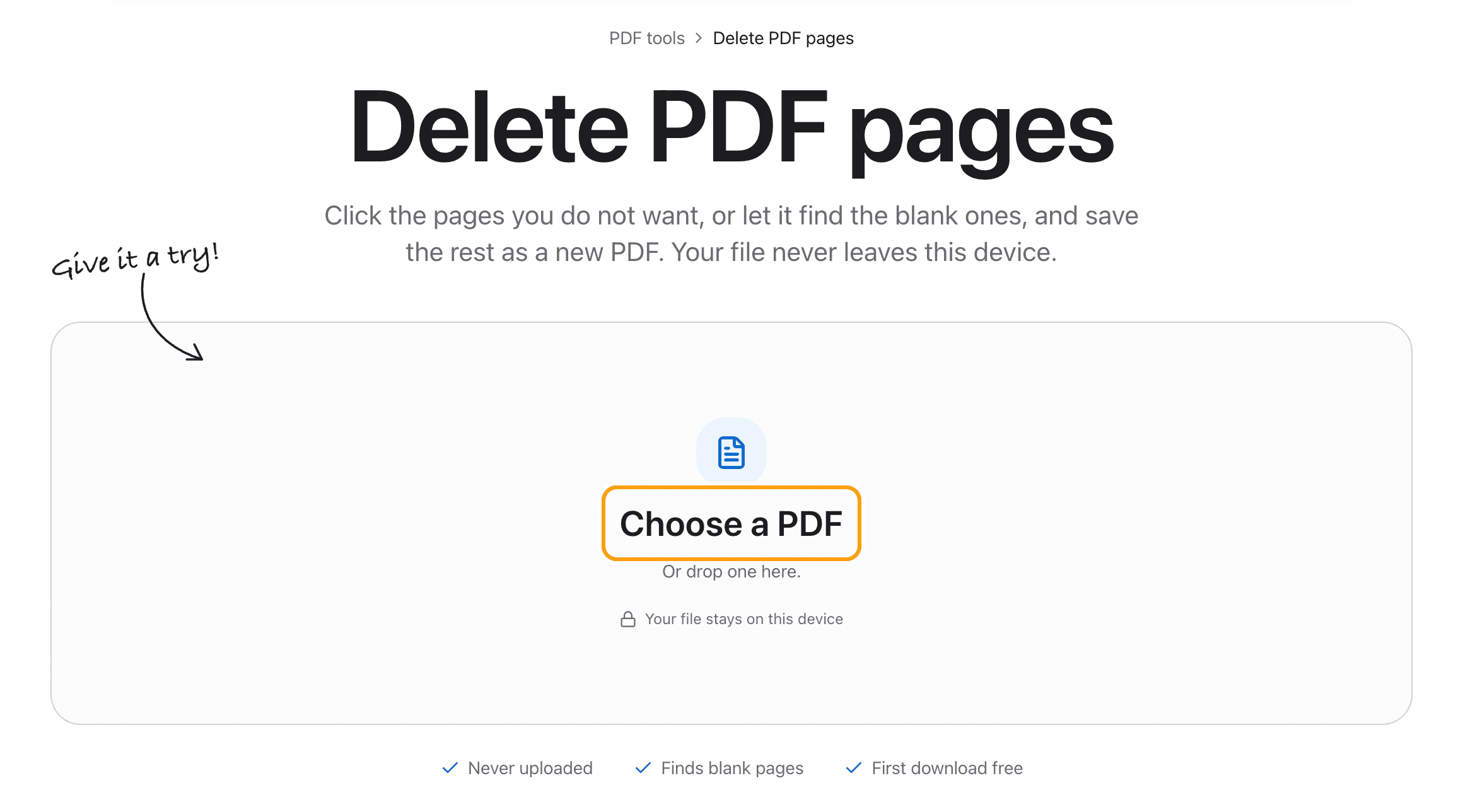
Click the pages you do not want, or let it find the blank ones, and save the rest as a new PDF. Your file never leaves this device.
Choose a PDF
Or drop one here.From your files, downloads, or wherever it landed.
Your file stays on this device
- Never uploaded
- Finds blank pages
- First download free
How to delete pages from a PDF
Four steps, and you see every page before anything is removed.
Step 1
Choose your PDF
Click Choose a PDF, or drop the file anywhere on this page.
It opens here in your browser and every page shows up as a thumbnail. Nothing is sent to a server.
Step 2
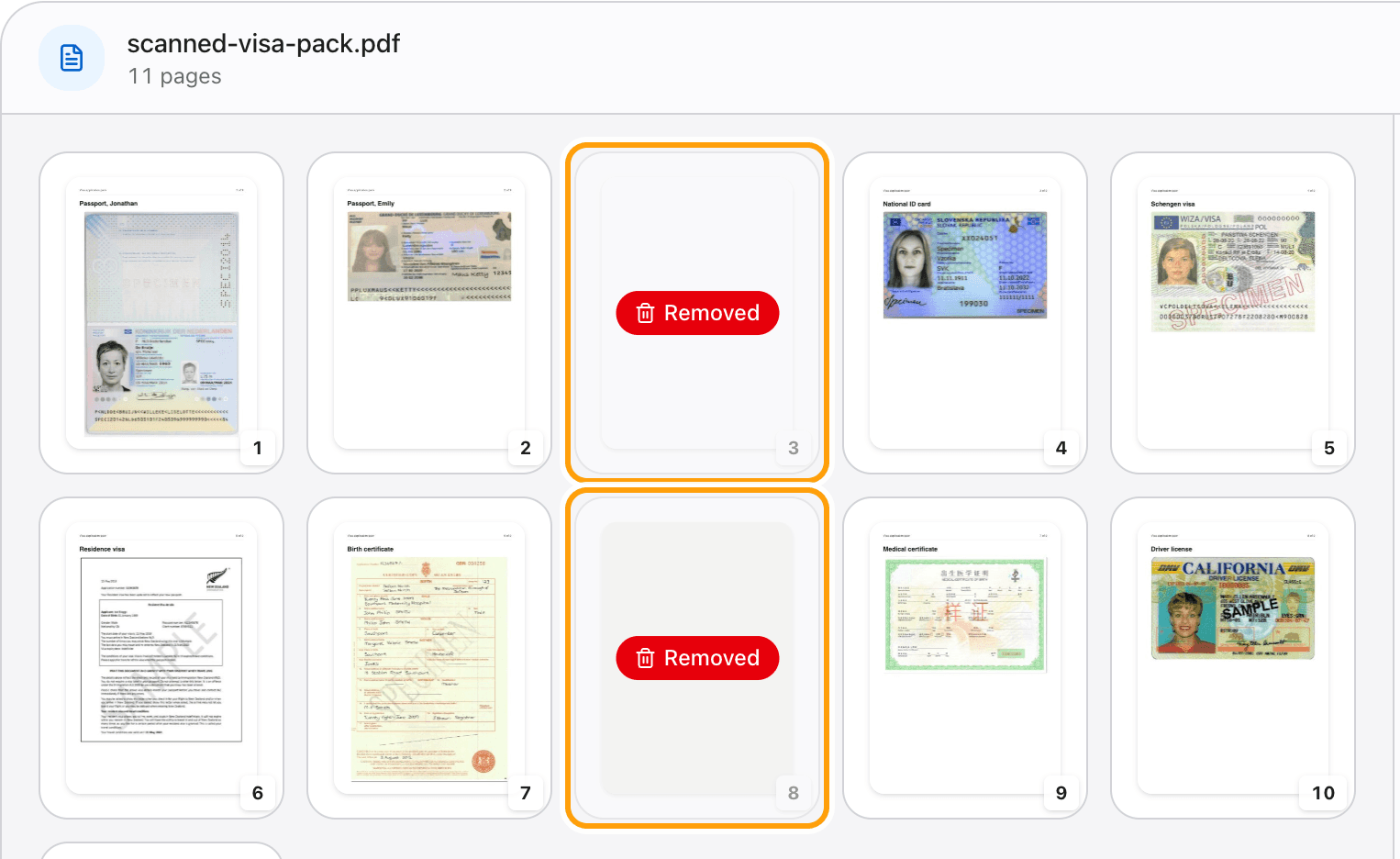
Click the pages you want to remove
Each page you click is tagged Removed and fades back, so you can see exactly what is leaving before anything happens.
Changed your mind? Click it again. Nothing changes until you save.
Step 3
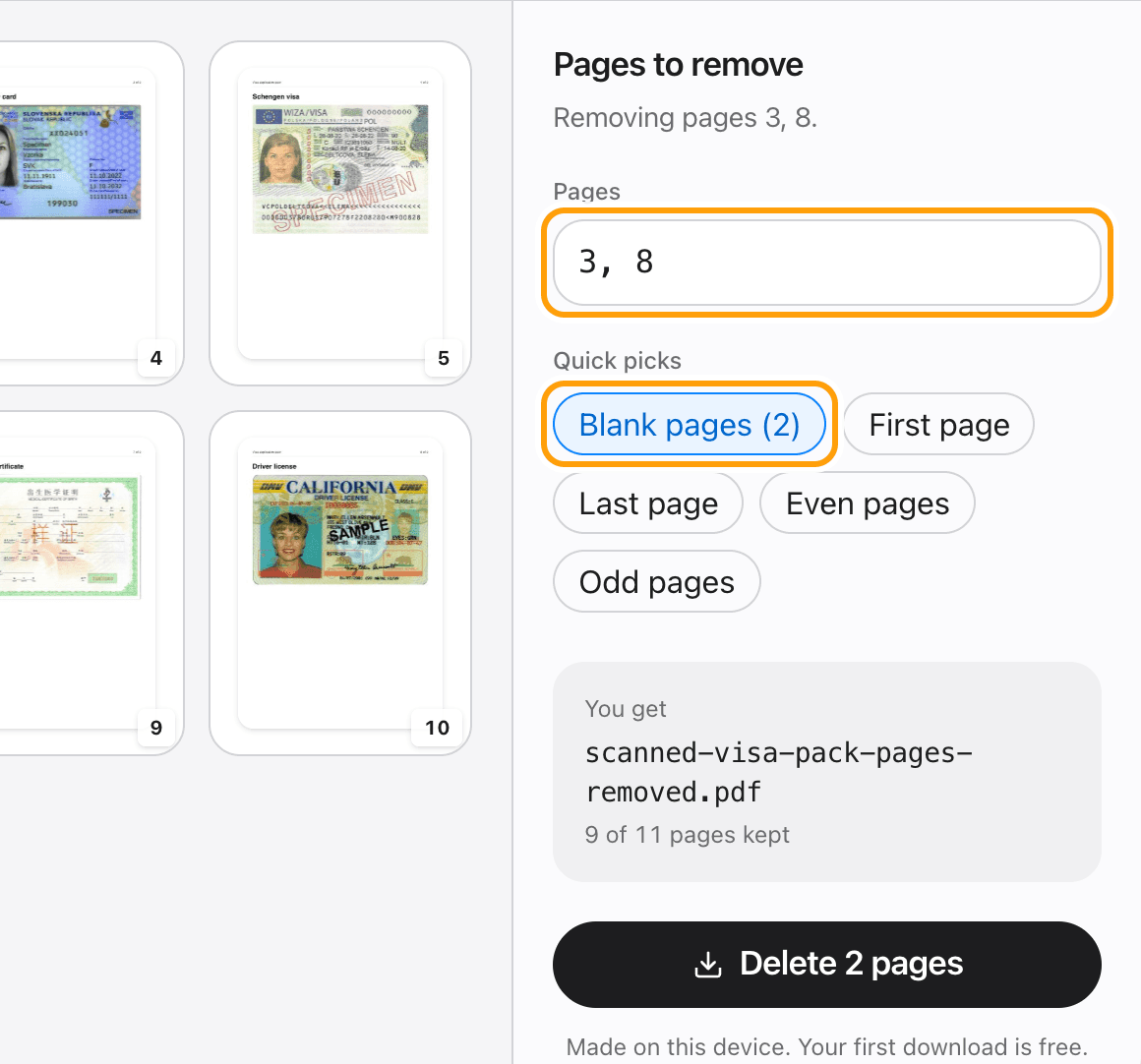
Or type them, or let it find the blank pages
Type page numbers and ranges, like 2, 5-7, or 10- for everything from page 10 to the end.
Blank pages checks every page and picks the empty ones, like the blank backs a scanner adds. Here it found both, including one with a grey scanner tint.
Step 4
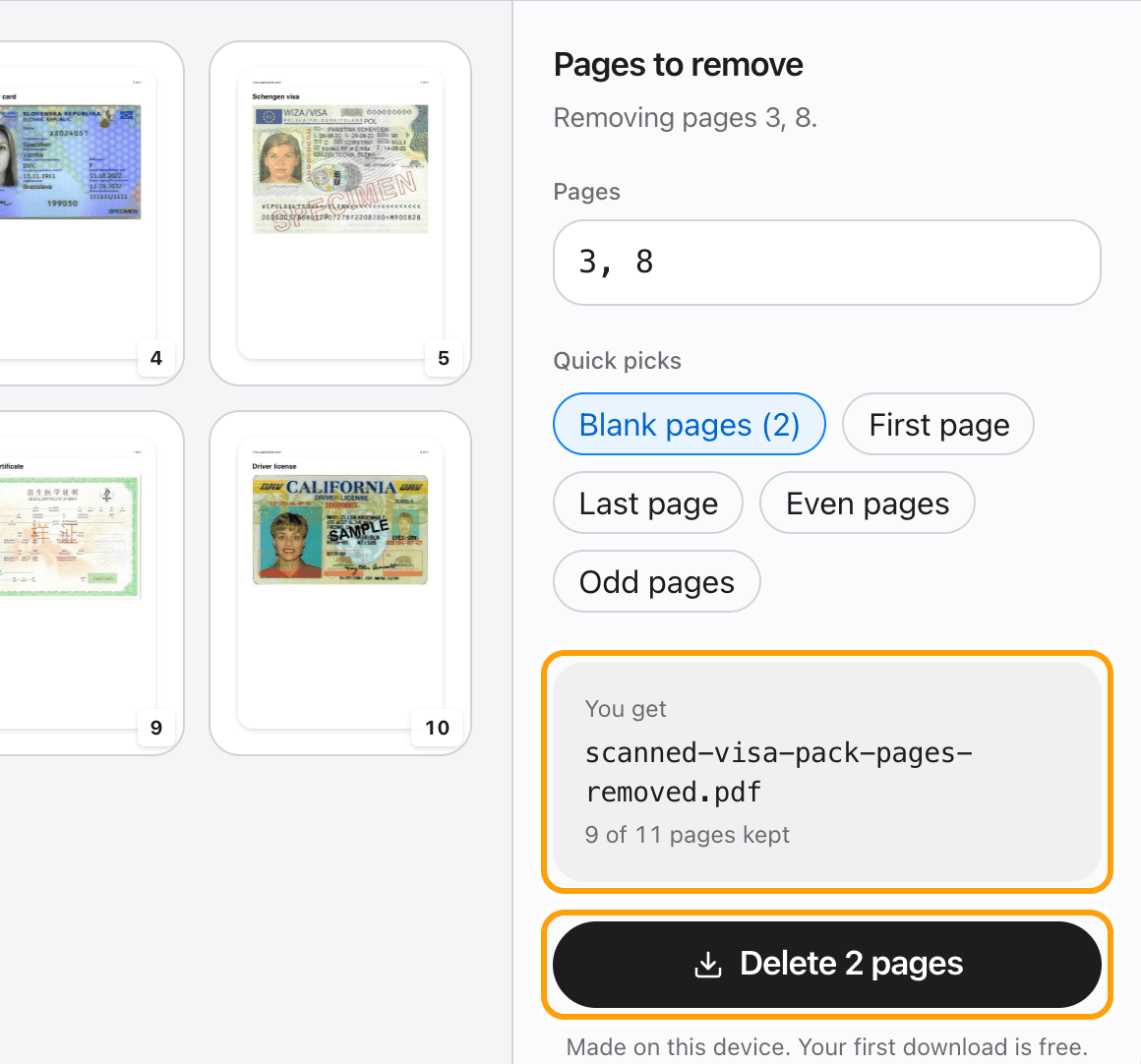
Delete and save
The panel shows how many pages stay. Click Delete and the new PDF saves to your device.
The pages you keep are copied exactly as they were: text stays sharp and selectable, and nothing is recompressed.
Ways to delete pages
Remove blank pages from a scan
Blank pages finds every page with no ink on it, including the grey-tinted backs scanners produce, and marks them all in one click.
Delete a range of pages
Type 5-7 for pages 5 to 7, or 10- for page 10 to the end. Commas separate as many ranges as you like.
Remove every other page
Even pages or Odd pages marks every second page, which is what you need when a scan caught the backs of single-sided sheets.
Delete the first or last page
First page drops a cover sheet, Last page drops the empty page an export often leaves at the end.
Delete pages on a Mac, iPhone or PC
It runs in Safari, Chrome, Edge or Firefox. On an iPhone, tap the pages instead of clicking them.
Reorder or rotate pages too
Edit in the PDF editor opens the same file with the pages view, where you can drag pages into order, rotate them and delete more.
Questions
How do I delete pages from a PDF without uploading it?
Choose your PDF above, click the pages you want gone, and click Delete. It happens in your browser, on your device. The file is never sent anywhere.
Is it free?
Your first download is free, with no account and no watermark. After that, downloading needs Pro, which is a one-time purchase.
Does deleting pages change the rest of the PDF?
No. The pages you keep are copied into the new file as they are. Text stays selectable and images are not recompressed.
Can I undo a deleted page?
Until you save, yes: click the page again or edit the page list. Your original file is never changed; the result is saved as a new PDF.
How does it find blank pages?
It looks at every page and picks the ones with almost no ink on them. Check the ones it marks before you save; a page with a single faint line can look blank.
Will my bookmarks be kept?
No. The new PDF keeps every page you did not delete, but the bookmark list is not carried over.
What if my PDF has a password?
Open it in the PDF editor with its password first. A locked file cannot be read until it is unlocked.
Ready to remove those pages?
Choose a PDFThe same PDF editor, on your Mac
Edit, sign, merge and compress PDFs offline, in their own window, and convert images, video, audio and documents too. Everything stays on your Mac.