
Highlight a PDF
Drag across the words to mark them, in six marker colours that keep the text readable. Your file never leaves this device.
Choose a PDF
Or drop one here.From your files, downloads, or wherever it landed.
Your file stays on this device
- Never uploaded
- Six marker colours
- First download free
How to highlight text in a PDF
Four steps, and the highlighter is already in your hand when the file opens.
Step 1
Choose your PDF
Click Choose a PDF, or drop the file anywhere on this page.
It opens in the editor right here with the highlighter already picked up. Nothing is sent to a server.
Step 2
Drag across the words
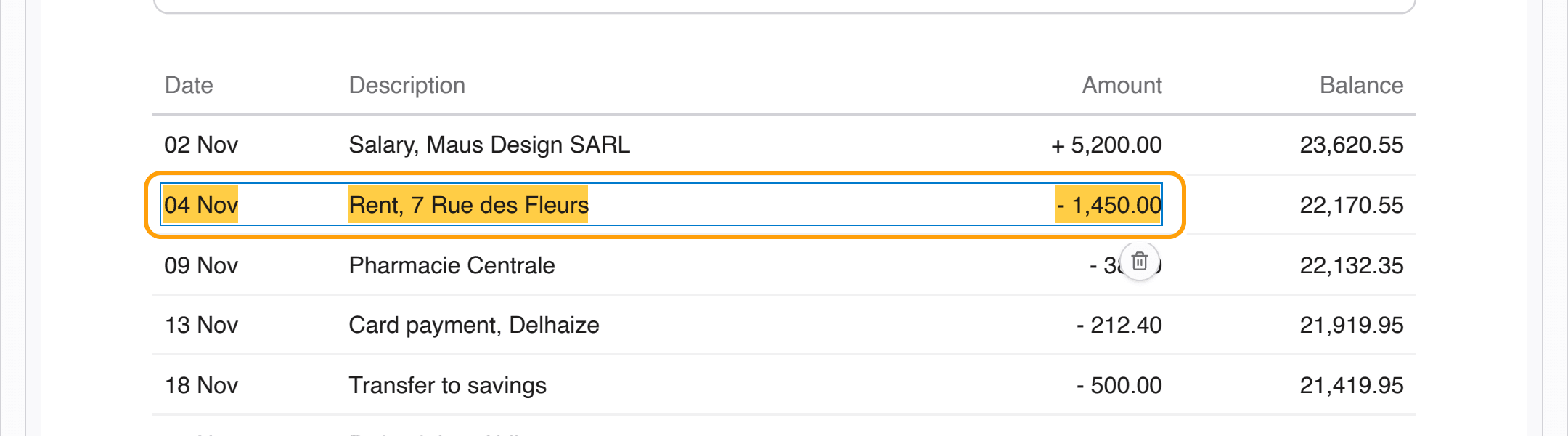
Drag over the text you want to mark, the way you would select it to copy. The highlight follows the lines of text, not a rough box.
Here, the rent payment on a bank statement, marked for a tax claim.
Step 3
Pick another colour
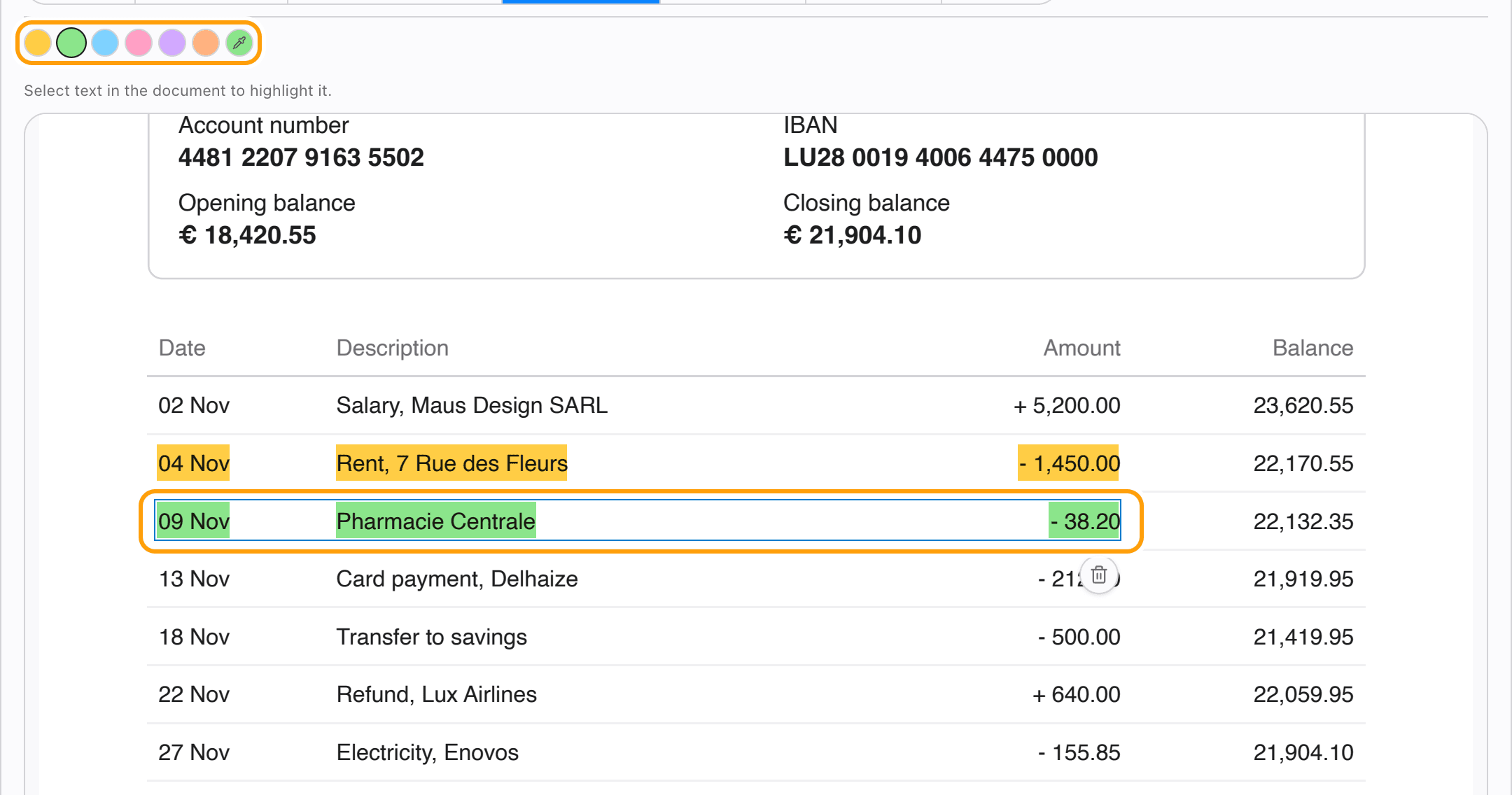
Six marker colours sit above the page. Pick one before you drag, and use a colour per kind of thing: yellow for rent, green for medical.
Every colour is light enough that the words under it stay easy to read, on screen and on paper.
Step 4
Download the PDF
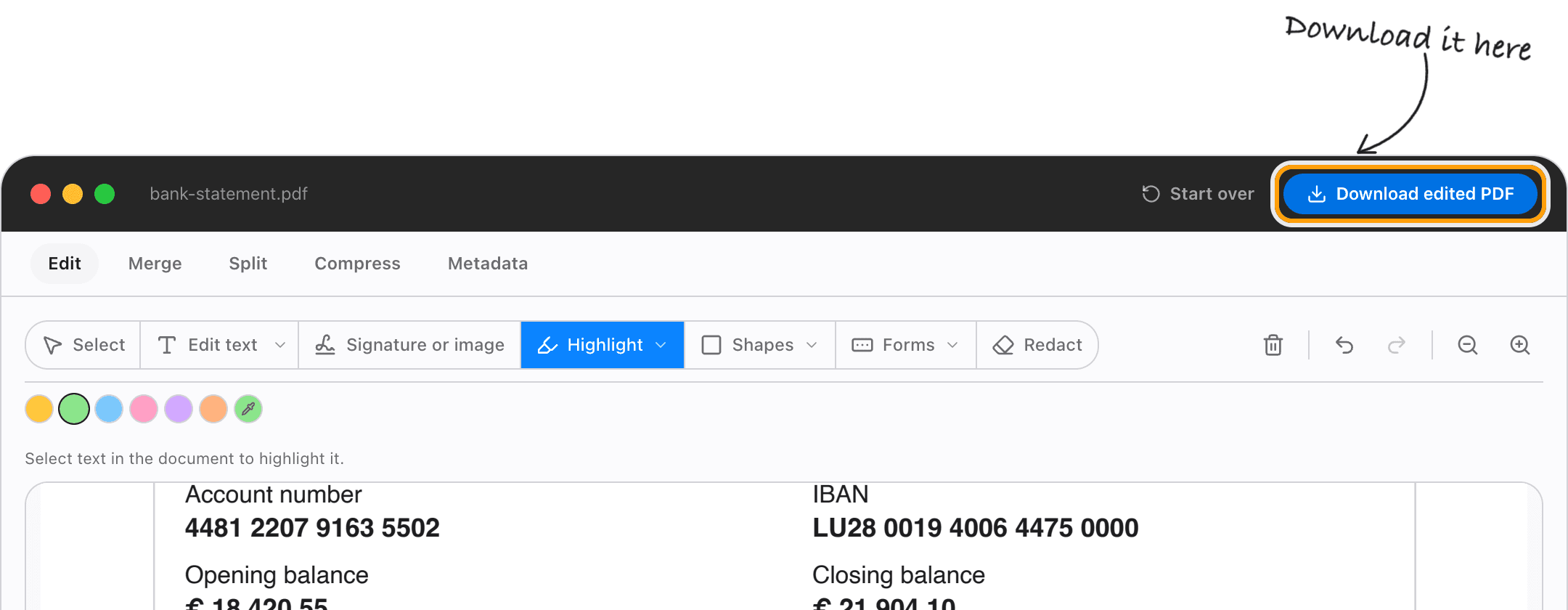
Click Download edited PDF. The highlights are part of the pages, so they show the same in every reader and when printed.
The text underneath is not touched and can still be selected and searched.
Ways to mark up
Highlight in different colours
Yellow, green, blue, pink, purple and orange, plus a colour picker for anything else, like a house colour.
Change a highlight's colour
Switch to Select, click the highlight, and pick a new colour. It changes that one, not the next.
Remove a highlight
Select it and press Delete, or use the bin. Cmd+Z or Ctrl+Z undoes the last one.
Underline or strike out instead
The Annotate menu also has underline and strike out, for marking up a contract or a draft.
Add a note beside it
Switch to Edit text, click the empty space beside a highlight and type. The note matches the text around it.
Highlight on an iPad or phone
It works in Safari and Chrome. Drag across the words with a finger.
Questions
How do I highlight a PDF without uploading it?
Choose your PDF above, drag across the words, and download. It all happens in your browser, on your device. The file is never sent anywhere.
Is it free?
Your first download is free, with no account and no watermark. After that, downloading needs Pro, which is a one-time purchase.
Can I highlight a scanned PDF?
Only text can be highlighted, and a scan is a picture of text. Run it through OCR PDF first, and then the words can be selected and highlighted.
Will the highlights show in other PDF readers?
Yes. They are drawn into the pages, so Preview, Acrobat, a browser and a printer all show them the same way.
Does highlighting change the text?
No. The words underneath stay exactly as they were, and can still be selected, searched and copied.
Can I undo a highlight?
Yes. Cmd+Z or Ctrl+Z takes back the last one, and any highlight can be selected and deleted until you download.
Ready to mark what matters?
Choose a PDFThe same PDF editor, on your Mac
Edit, sign, merge and compress PDFs offline, in their own window, and convert images, video, audio and documents too. Everything stays on your Mac.