
Edit PDF metadata
See what your PDF says about itself, change it, or remove it all before you share. Your file never leaves this device.
Choose a PDF
Or drop one here.From your files, downloads, or wherever it landed.
Your file stays on this device
- Never uploaded
- Remove it all in one tick
- First download free
How to edit PDF metadata
Four steps, starting with what the file says now.
Step 1
Choose your PDF
Click Choose a PDF, or drop the file anywhere on this page.
It opens here in your browser. Nothing is sent to a server, so the details you are about to hide never leave your device either.
Step 2
See what the PDF says about itself
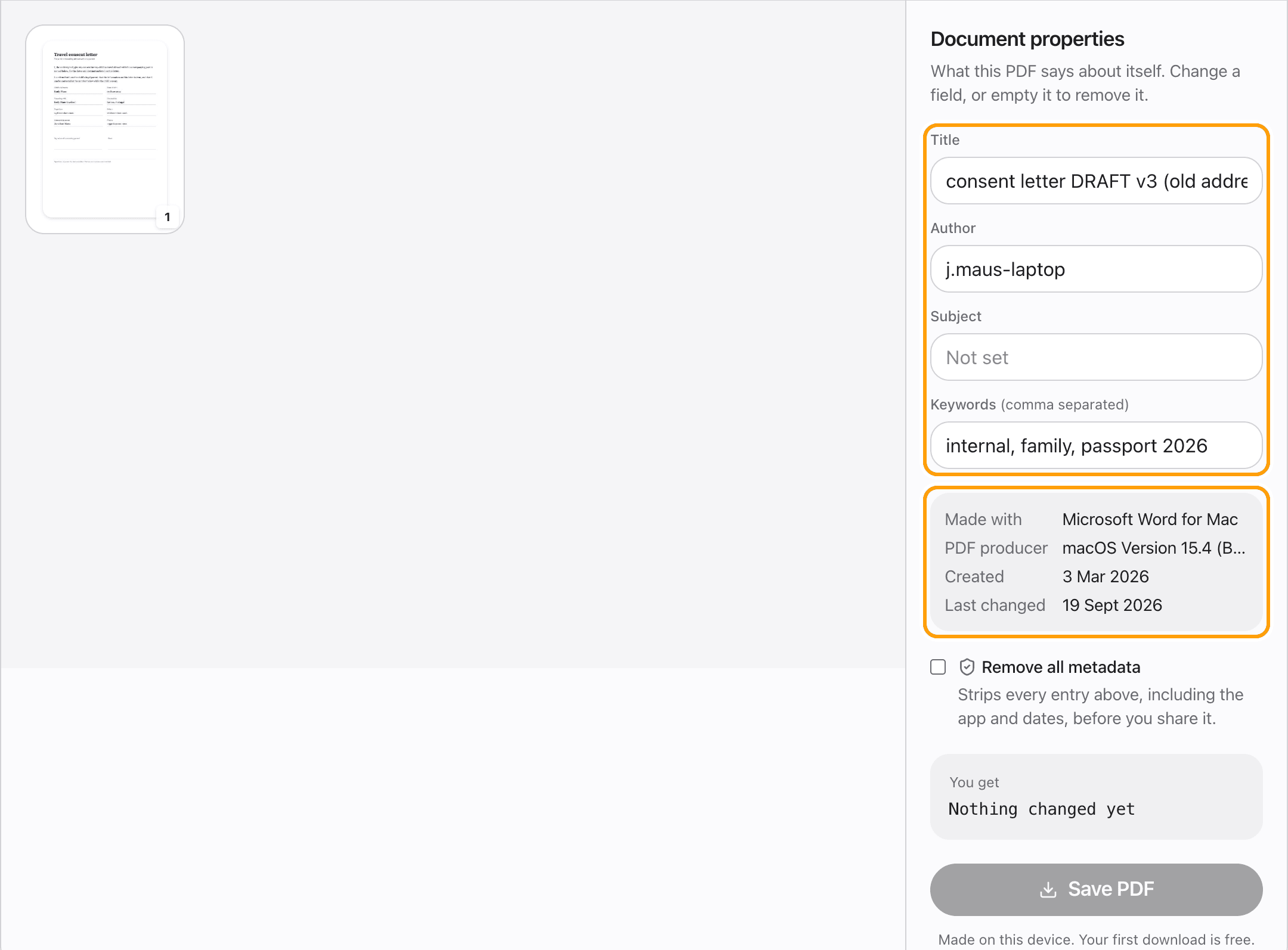
The title, author, subject and keywords open filled in with what is in the file now, along with the app that made it and when.
Here, a letter still carrying a draft title, a laptop name as the author, and the Word and macOS versions it came from.
Step 3
Change it, or remove it all
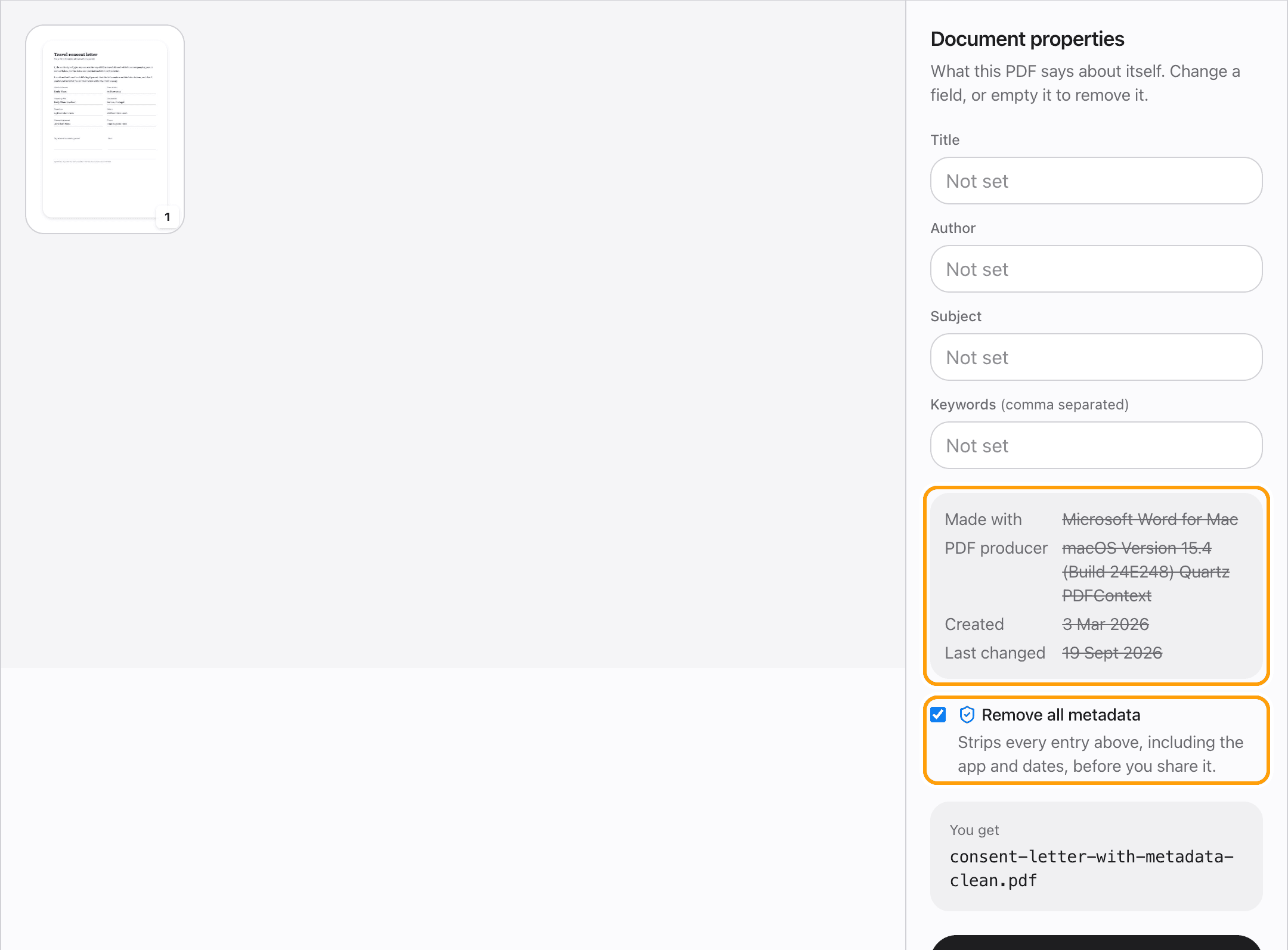
Type over any field. Empty one to remove that entry completely.
Remove all metadata strips every entry, the app and dates included, which is the one to use before a file goes to a stranger.
Step 4
Save the PDF
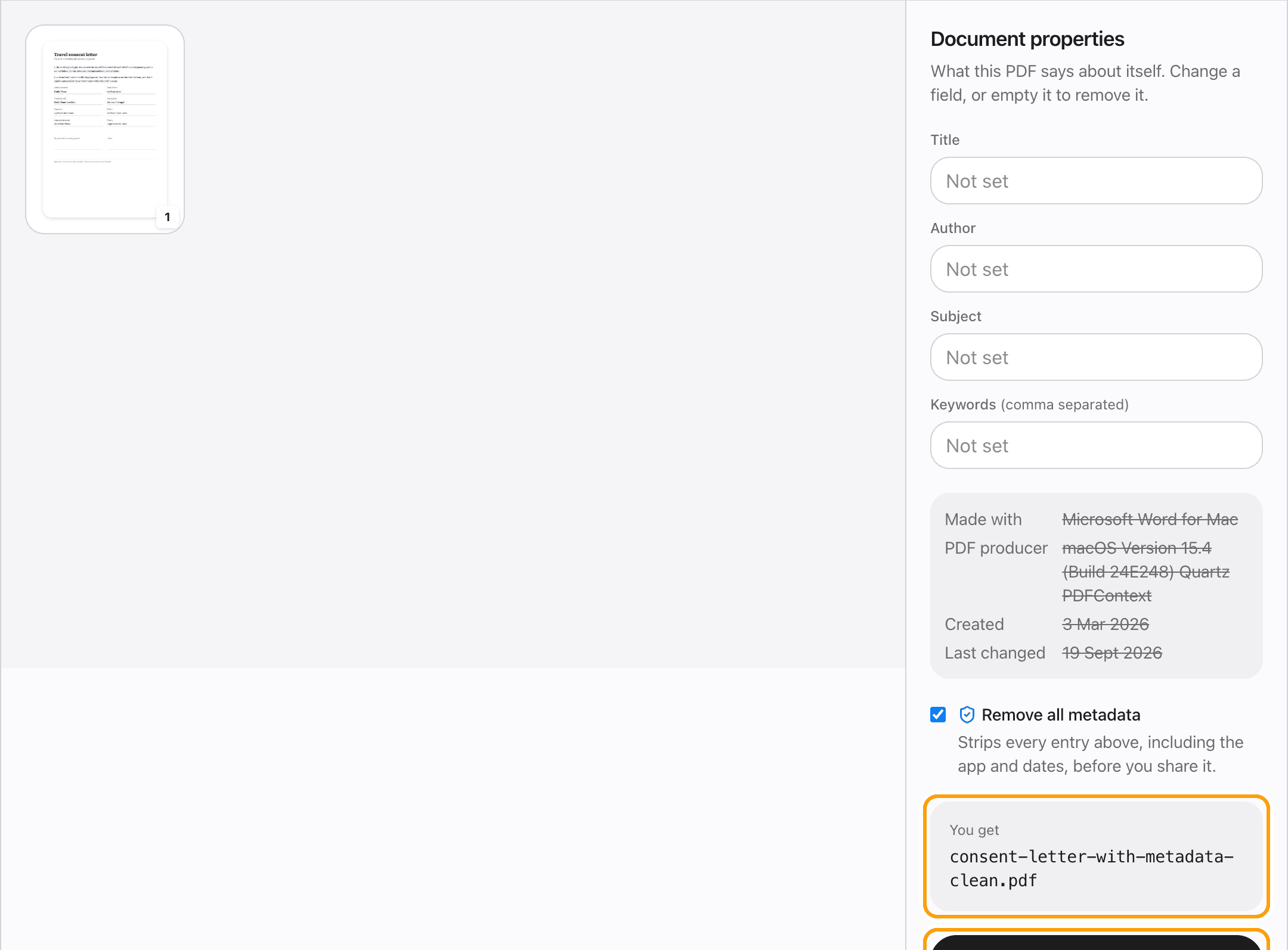
Click Save PDF, or Remove metadata. Only the properties change: the pages, text, form fields and bookmarks are left exactly as they were.
What you can change
Change a PDF's title
Many readers and browser tabs show the title instead of the file name, so a leftover draft title is what people see. Type the real one.
Remove the author name
Documents often carry a computer or account name as the author. Empty the Author field to take it out.
Hide the app that made the file
Remove all metadata also strips the creating app, its version and the dates, which say more about you than the title does.
Add keywords and a subject
Keywords and a subject help document systems and search find the file. Separate keywords with commas.
Keep forms and bookmarks
The change is written into the document itself, so fillable fields, bookmarks and attachments come through untouched.
Check a PDF before you send it
Open it just to read the properties. If nothing needs changing, close it; nothing is saved unless you click the button.
Questions
How do I edit PDF metadata without uploading the file?
Choose your PDF above, change the fields, and click Save PDF. It happens in your browser, on your device. The file is never sent anywhere.
Is it free?
Your first download is free, with no account and no watermark. After that, downloading needs Pro, which is a one-time purchase.
What is PDF metadata?
Details stored inside the file about the file: its title, author, subject and keywords, the app that created it, and when it was made and last changed.
What does Remove all metadata take out?
Every entry in the document's properties: title, author, subject, keywords, the creating app, the PDF producer and both dates, plus the XMP copy of them.
Does it remove comments or other hidden content?
No. It only changes the document's properties. Comments, highlights and the text on the pages stay. To take content out, use Redact PDF.
Will editing the metadata change anything else?
No. The pages, text, images, form fields and bookmarks are left exactly as they were.
What if my PDF has a password?
Open it in the PDF editor with its password first. A locked file cannot be read until it is unlocked.
Ready to check your PDF?
Choose a PDFThe same PDF editor, on your Mac
Edit, sign, merge and compress PDFs offline, in their own window, and convert images, video, audio and documents too. Everything stays on your Mac.