Guides
The Best Private File Converter for Mac (2026, Tested)

Here is the part nobody tells you about most online file converters. You drag in a PDF that has your salary on it, or a photo with the GPS pin still baked into the metadata, and before the site changes a single byte it uploads the whole file to a server you have never heard of.
I got tired of that, so I started keeping a short list of Mac converters that do the work on your own machine instead. This is that list. I use a Mac every day and I built one of the tools on it, so I will be upfront about that when we get to it and tell you where it loses.
Private should mean one thing. Your file never leaves your computer. Not “deleted after an hour,” not “encrypted in transit.” Never sent at all.
Definitions
What “private” actually means
Private is a word every converter throws around, so it is close to meaningless until you pin it down. I mean one specific thing: your file never leaves your computer. It simply never gets sent anywhere in the first place, which is a very different promise from a company swearing it will clean up after itself later.
The five-second test
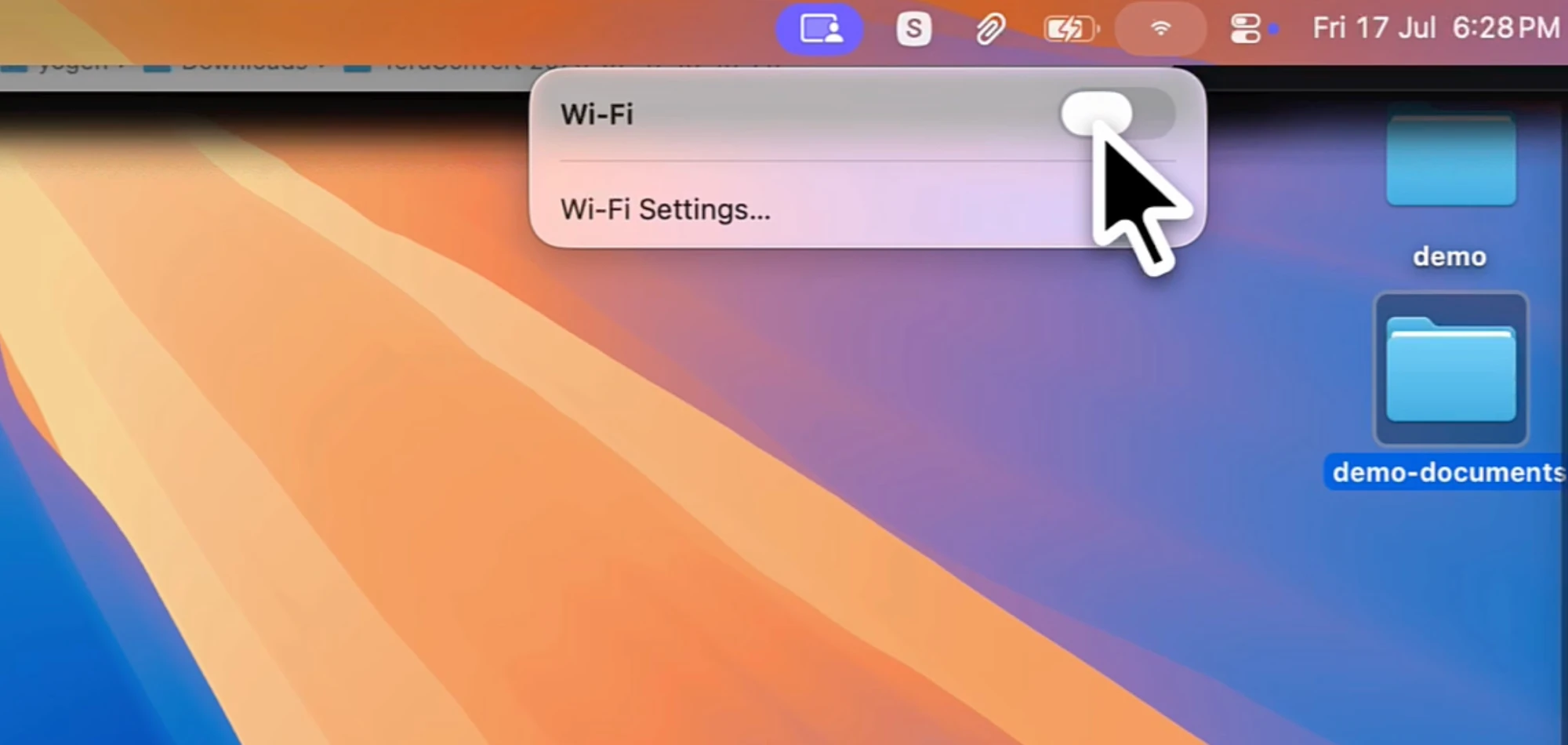
Turn off your wifi and try to convert something
See for yourself
Convert a file without leaving this page
This is the real TeraConvert web converter, running inside the article you are reading. Drop an image in. Then open your Network tab and watch nothing leave.
100% local. Your file is processed in this tab and never uploaded.
Proof, not promises
Six checks you can run yourself
You should not take my word for any of this. Here is exactly what “it stays on your machine” looks like when you go looking for the evidence.
Turn your wifi off
A local converter keeps working with no connection. An online one stops the second the network drops.
Open the Network tab
In your browser dev tools, watch requests while you convert. Your file is never in the list.
No upload request
There is no POST carrying your file to a server, because the work happens in the page you are on.
Nothing left behind
The file is read into memory, converted, and handed back. It is not parked in anyone's storage.
Your CPU does the work
WebAssembly runs the same conversion engines on your own processor, not a rented server.
Check it yourself
You do not have to trust a privacy policy. Every claim here is something you can verify in a minute.
Method
How I tested
I ran the same handful of everyday jobs through every tool on the list, the exact conversions people reach for and nothing exotic. For each one I watched whether it asked me to sign up, whether it slapped on a watermark, whether it capped my file size, and, the big one, whether it phoned home while it worked.
iPhone HEIC to JPG
The everyday one. A camera-roll photo that half the web refuses to open.
MOV to MP4
A phone clip into something that plays anywhere, without re-uploading a gig of video.
Word doc to PDF
The document that usually tempts you onto a sketchy free-converter site.
A batch of images at once
Because one file is a demo and a folder is the actual job.
The field
The picks, compared
Five of these do the work on your machine. One sends your file to a server. That is the line that matters, so it is the first thing each card tells you.

TeraConvert
One tool that stays on your machine across every file type. Full disclosure, I build it.

HandBrake
Free and open source, deep codec control. Video only, and the interface is a cockpit.

Permute
A polished paid Mac app for video, audio, and images. Stays local.

ffmpeg
The most powerful of the bunch if you live in a terminal. Steep learning curve.
Automator / Shortcuts
Already on your Mac. Fiddly to set up and barely touches video or documents.

CloudConvert
Handles formats the others do not. The catch is your file goes to their servers.
That last card is not a knock on CloudConvert as software. It is the row to avoid when the file is something you would not email to a stranger.
Tool by tool
The honest rundown
TeraConvert
Full disclosure: I build this one. So take the pitch with the salt it deserves and lean on the wifi-off test instead of my word. It converts images, audio, video, and documents. The web version runs the whole thing in your browser tab with WebAssembly, and the Mac app uses native tools on your disk for the heavier work. First conversion on the web is free, then it is a one-time purchase, no subscription. Where it loses: the desktop app is Apple Silicon only right now, and if you want frame-level video encoding control, HandBrake or ffmpeg will out-muscle it.
HandBrake
Free, open source, and a fixture on Mac for years. It is a video tool at heart, so it will not touch your images or documents, and the interface can feel like a cockpit if you just want an MP4. But for squeezing a video down with real codec control, it is hard to beat, and it never uploads anything.
Permute
A native Mac app that handles video, audio, and images with a clean drag-and-drop feel. It is paid and Mac-only, and it stays local. If you want something that looks and behaves like a proper Mac citizen and you mostly work with media, it is a solid pick.
ffmpeg
The engine half the other tools quietly wrap, mine included. On the command line it can do almost anything to audio and video, for free, entirely offline. The catch is the command line itself. If you are comfortable there, nothing here is more powerful. If you are not, the learning curve is real and this is the wrong starting point.
macOS Automator and Shortcuts
You already own these. For basic image conversions, a two-step Shortcut or an Automator Quick Action can turn a HEIC into a JPG from the right-click menu without installing a thing. It is limited and fiddly to set up, and it barely touches video or documents, but it is free and it is local.
CloudConvert
I am including one online tool on purpose, because sometimes you have a weird format and the file is a meme, not a medical record. CloudConvert supports a huge range and works well. Just know the trade you are making: the file goes to their servers to be converted. Fine for the meme. Not fine for the contract.
On the desktop
For the heavy jobs, there is a Mac app
The browser handles most conversions. When a file is huge or the format is stubborn, the Mac app takes over and runs native tools straight off your disk. Same rule, nothing uploaded.
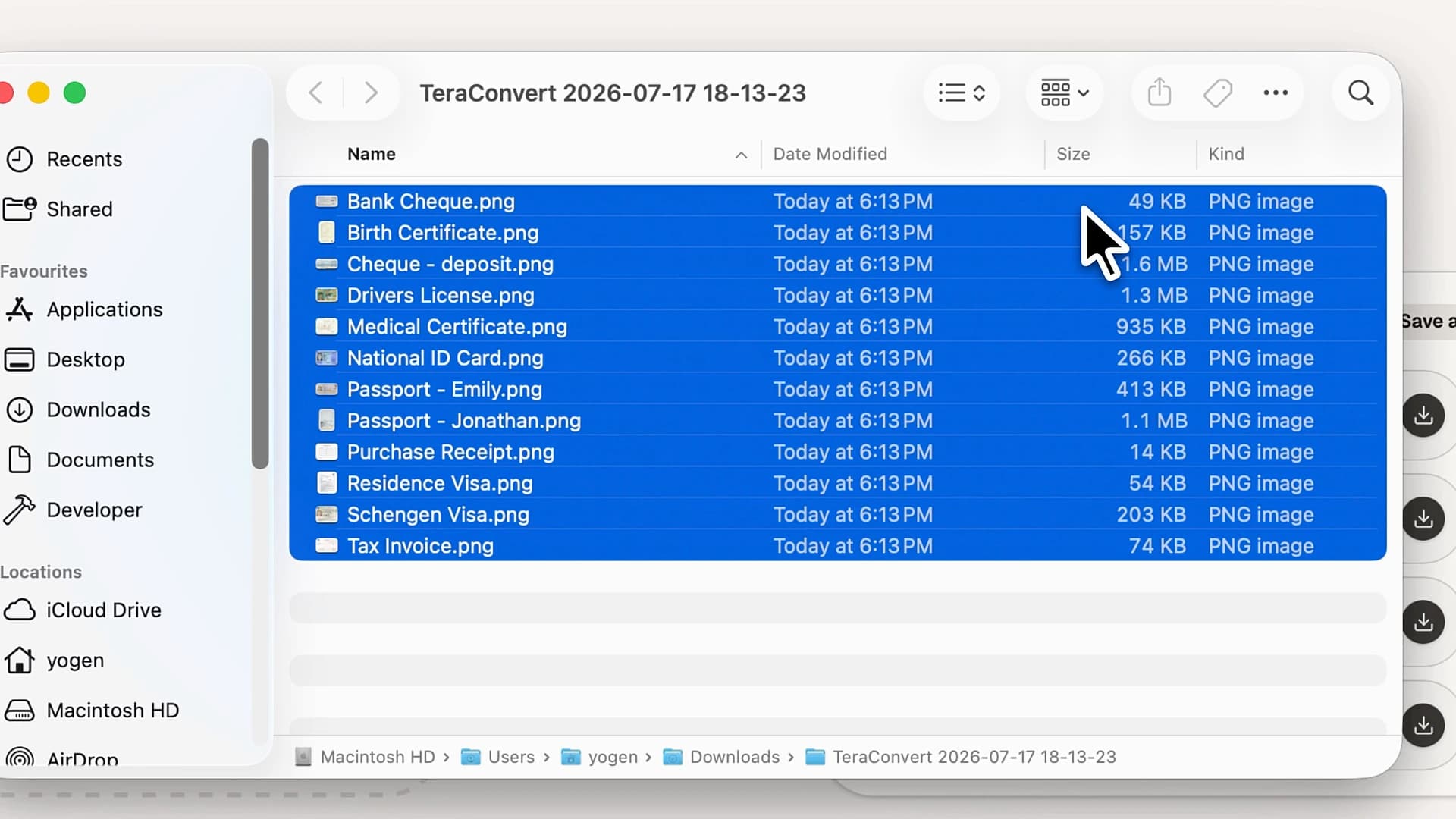
I built TeraConvert because I got tired of every “best converter” list pointing at a website that wanted my files.
Decide fast
How to choose in ten seconds
If the file is sensitive, use anything on this list except the website, and run the wifi-off test once to prove it to yourself. If you live in video and want maximum control, reach for HandBrake or ffmpeg. If you want one tool for images, audio, video, and documents that just stays on your machine, that is the gap I built TeraConvert to fill, and you can try it above without installing anything.
Questions
FAQ
What is the most private file converter for Mac?
Any converter that runs the conversion on your own machine rather than uploading to a server. HandBrake, Permute, ffmpeg, and TeraConvert all qualify. The quick proof is to turn off your wifi and see if the tool still works.
Can I convert files on a Mac without uploading them?
Yes. A local Mac app or a browser-based tool that uses WebAssembly does the conversion on your device, so the file never leaves it. Online converters are the ones that upload; local tools do not.
Is there a free private converter for Mac?
Several. HandBrake and ffmpeg are free and open source. macOS Automator and Shortcuts are built in. TeraConvert gives you a free conversion in the browser before asking you to buy the app.
Why do online converters ask you to upload the file?
Because the conversion runs on their server, not your computer. The upload is the whole model. That is convenient, and it is also the exact reason a private file should not go through one.
Your files belong to you.
Convert them locally. No uploads. No waiting. No surprises.
All product names, logos, and trademarks are the property of their respective owners. HandBrake, FFmpeg, Permute, CloudConvert, Automator, Shortcuts, Finder, and macOS are referenced here for comparison and identification only. TeraConvert is not affiliated with, endorsed by, or sponsored by any of them.