
Split a PDF
See every page, click the ones you need, and save them as a new PDF. Your file never leaves this device.
Choose a PDF
Or drop one here.From your files, downloads, or wherever it landed.
Your file stays on this device
- Never uploaded
- First download free
- No sign-up
How to split a PDF
Four steps, and you can see every page before you choose.
Step 1
Choose your PDF
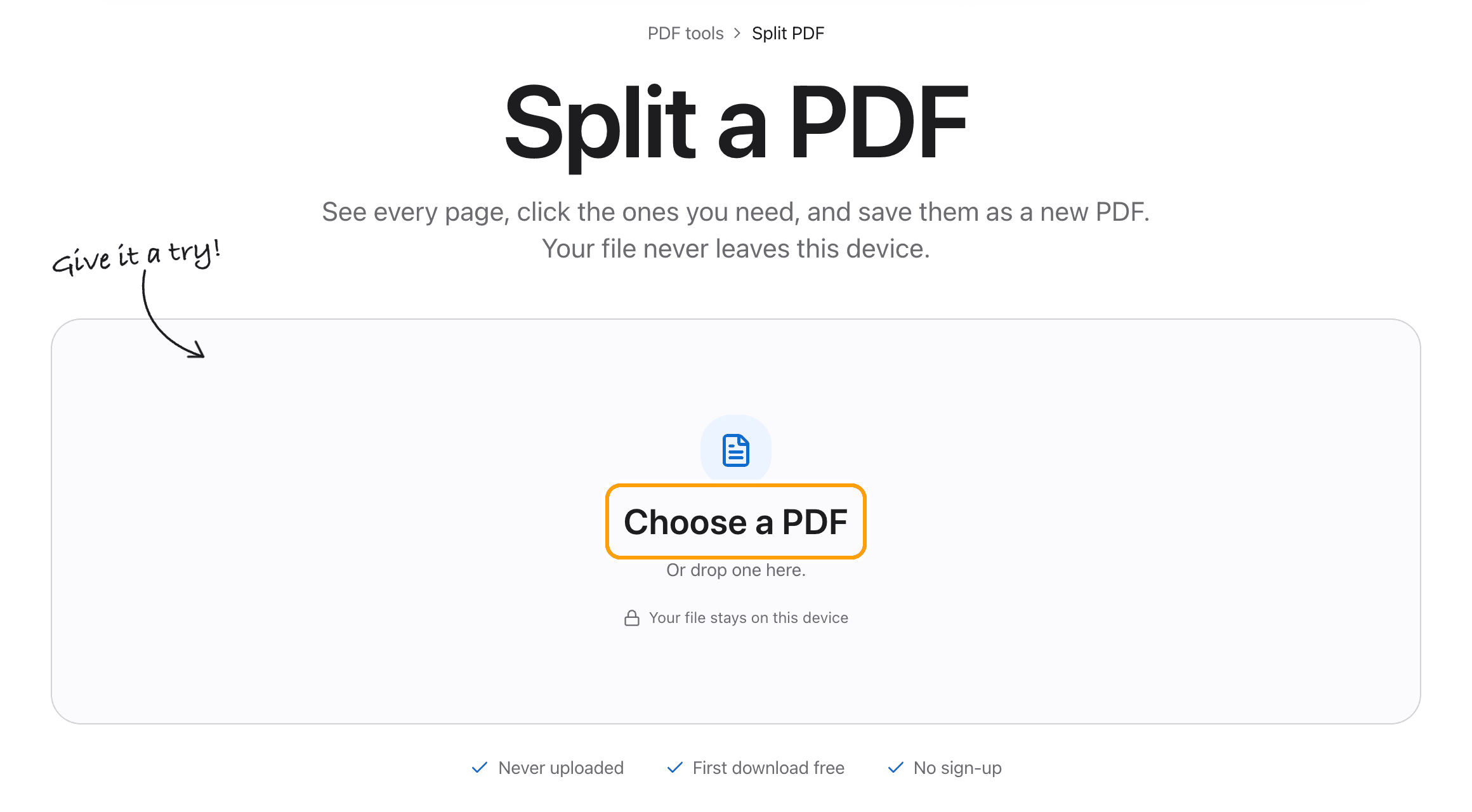
Click Choose a PDF, or drop the file anywhere on this page.
It opens right here in your browser. Nothing is sent to a server, so there is nothing to delete afterwards.
Step 2
Click the pages you want to keep
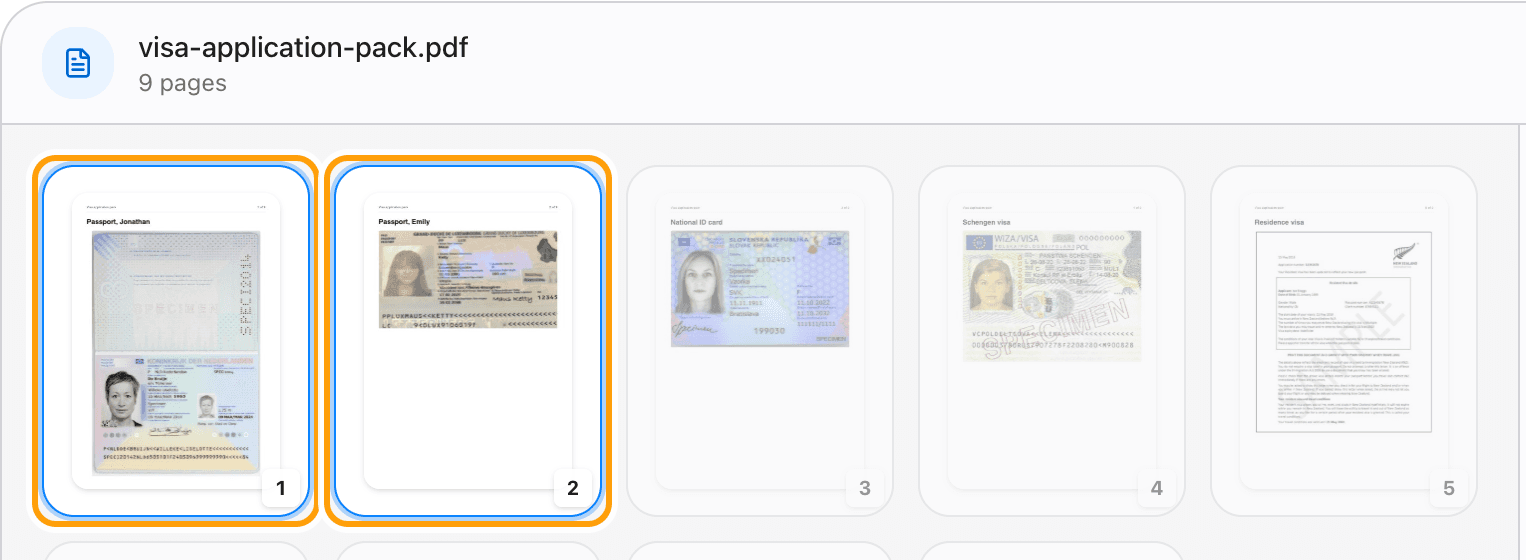
Every page of your PDF shows up as a thumbnail. Click the first page you want, then the last. Everything in between is picked, and the rest fade back.
Here, a nine-page visa application pack: clicking pages 1 and 2 pulls out just the two passports.
Step 3
Or type the pages, or use a quick pick
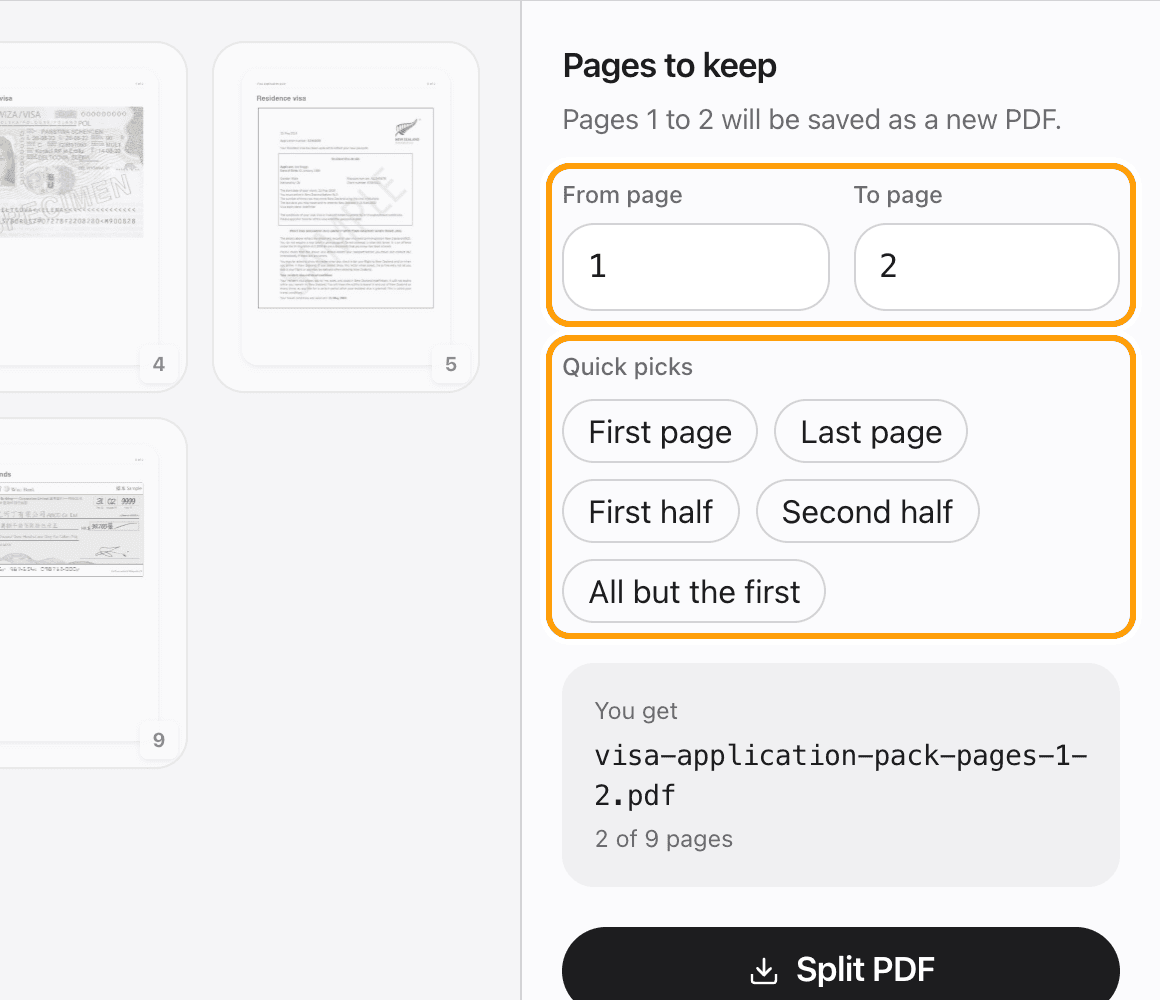
Know the numbers already? Type them into From page and To page.
Quick picks cover the common jobs in one click: the first page, the last page, either half, or everything but the cover.
Step 4
Split and save
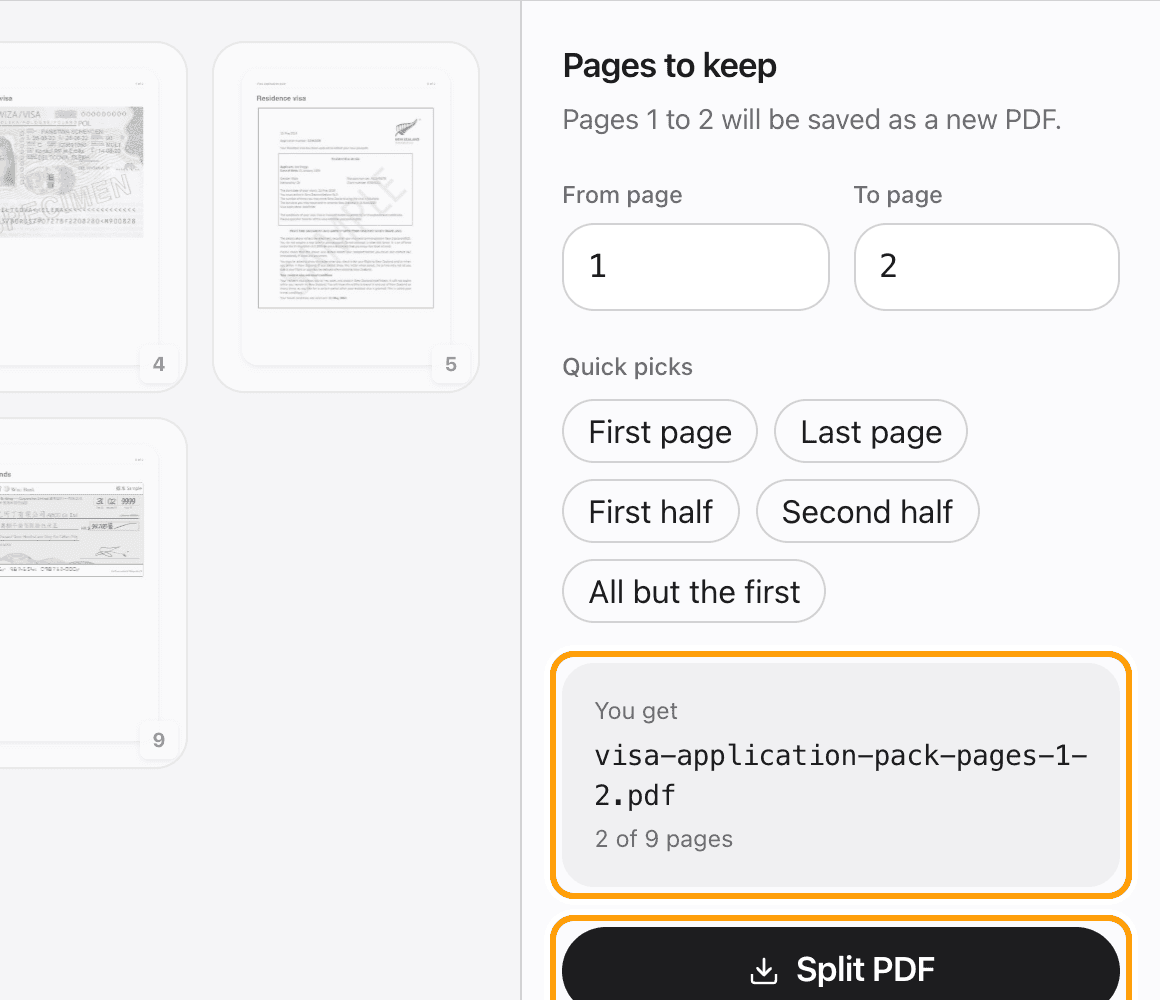
The panel shows the file you will get and how many pages it has. Click Split PDF and it saves to your device.
The pages are copied as they are, so text stays sharp and selectable and nothing is recompressed.
Ways to split
Split a PDF into two files
Pick First half, save it, then pick Second half and save again. Two files, no page left out.
Extract a single page from a PDF
Click one page and save. The file you get is named after the page, like report-page-4.pdf.
Remove the cover page
All but the first keeps every page except page 1, in one click.
Split a PDF by page range
Type any From and To page. The range includes both ends, so 3 to 7 gives you five pages.
Split a large PDF
Files up to 100 MB work in the browser. Thumbnails draw as you scroll, so a long document opens quickly.
Edit the pages before you split
Edit in the PDF editor opens the same file in the full editor: change text, sign, redact or reorder pages, then save.
Questions
How do I split a PDF without uploading it?
Choose your PDF above, click the pages you want, and click Split PDF. The splitting happens in your browser, on your device. The file is never sent anywhere.
Is it free?
Your first download is free, with no account and no watermark. After that, downloading needs Pro, which is a one-time purchase.
Will splitting lower the quality?
No. The pages are copied into the new file exactly as they were. Text stays selectable and images are not recompressed.
Can I split every page into its own file?
Not in one step yet. Split takes one range at a time, so pick a page, save, and repeat.
Can I pick pages that are not next to each other?
Not in one go. Split keeps one continuous range, so save each range you need as its own file.
What if my PDF has a password?
Open it in the PDF editor with its password first. A locked file cannot be read until it is unlocked.
Does it work on a Mac, iPhone or Windows?
Yes. It runs in any modern browser: Safari, Chrome, Edge or Firefox, on a Mac, a PC or a phone.
Ready to split your PDF?
Choose a PDFThe same PDF editor, on your Mac
Edit, sign, merge and compress PDFs offline, in their own window, and convert images, video, audio and documents too. Everything stays on your Mac.