
Rotate a PDF
Click the pages that are turned wrong and save them the right way up, for good. Your file never leaves this device.
Choose a PDF
Or drop one here.From your files, downloads, or wherever it landed.
Your file stays on this device
- Never uploaded
- Saved permanently
- First download free
How to rotate a PDF
Four steps, and every thumbnail shows the turn before you save.
Step 1
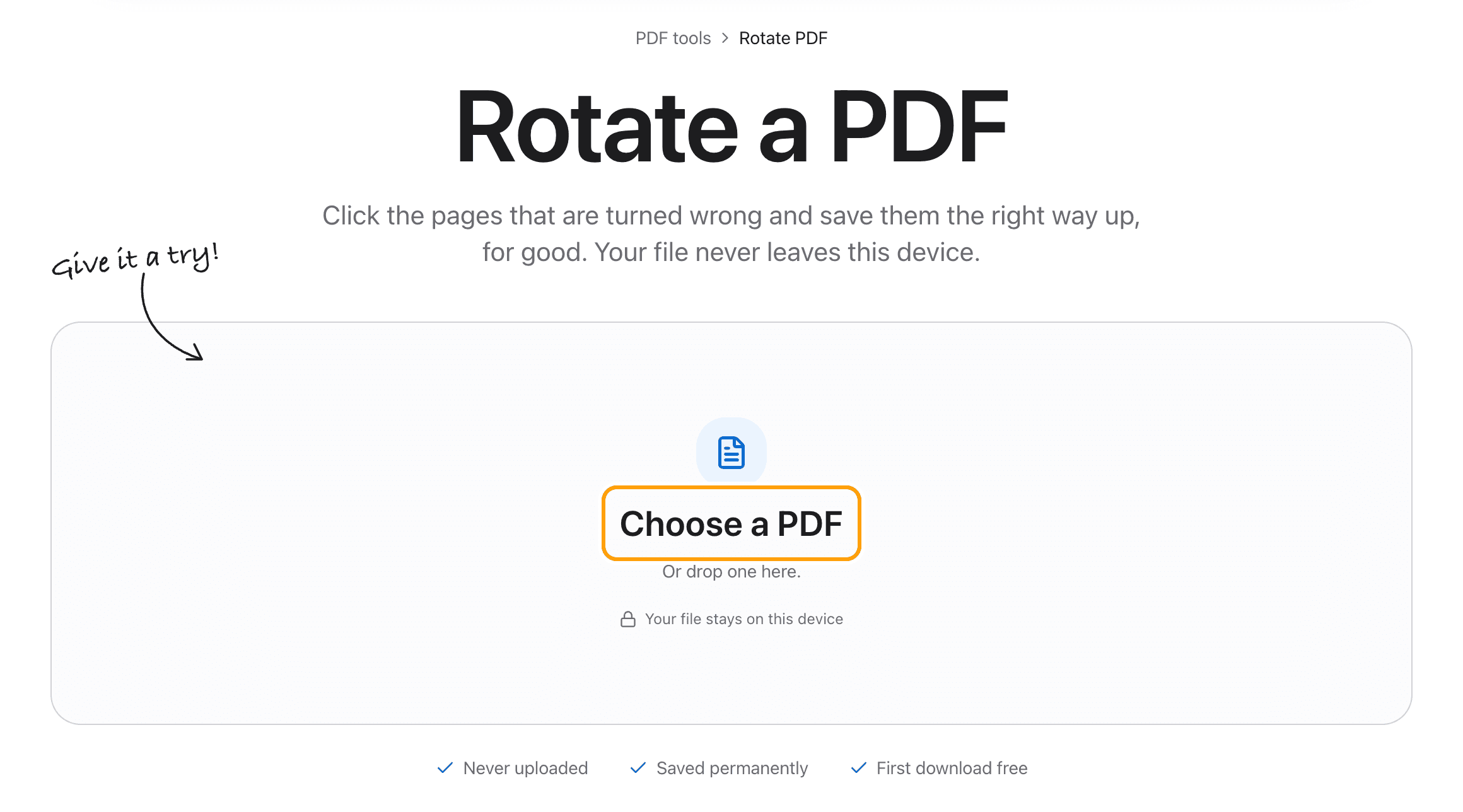
Choose your PDF
Click Choose a PDF, or drop the file anywhere on this page.
Every page shows up as a thumbnail, so the sideways and upside-down ones are easy to spot. Nothing is sent to a server.
Step 2
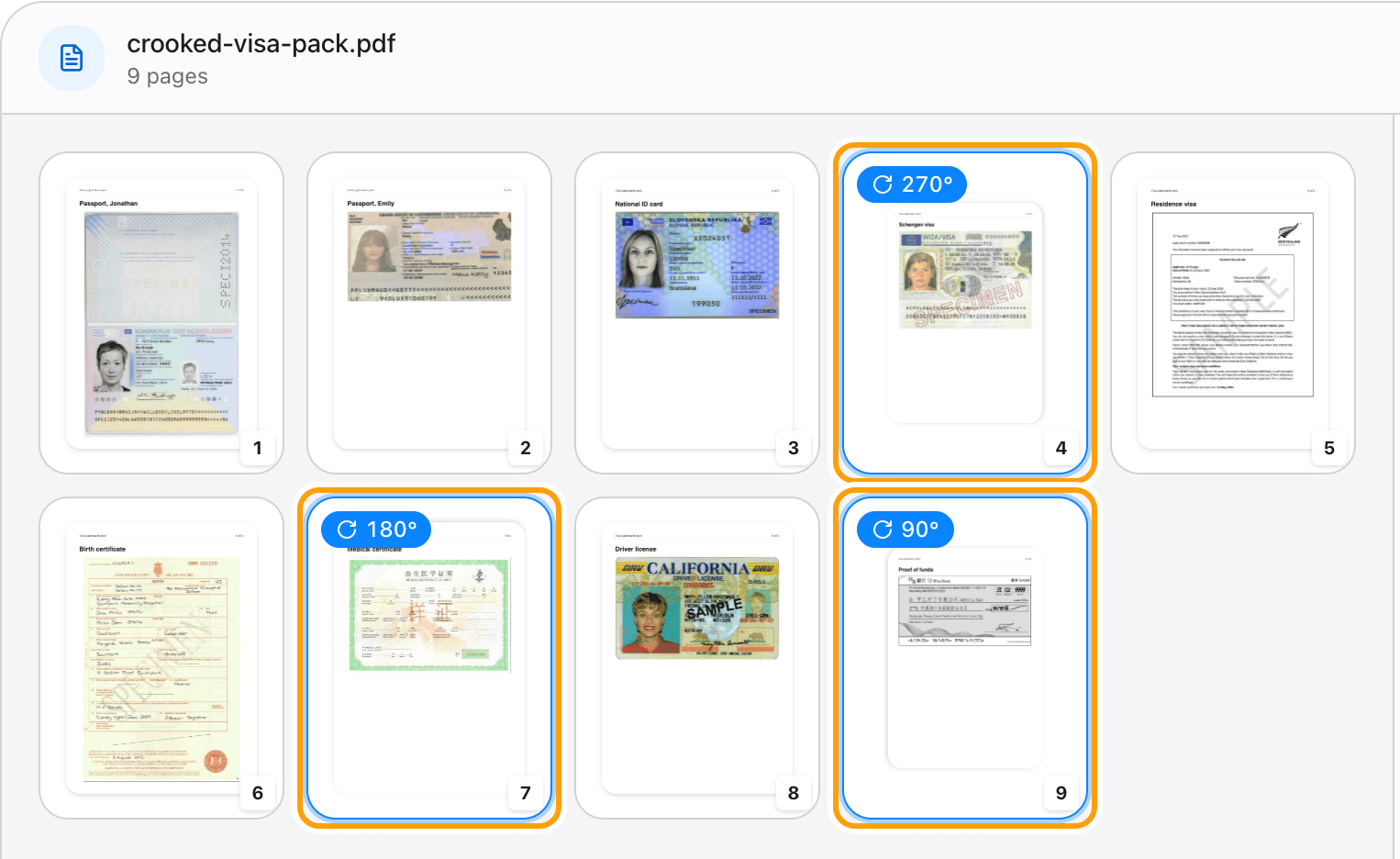
Click the pages that are turned wrong
Each click turns a page a quarter clockwise, right on its thumbnail, so you see the result before you save. Keep clicking until it is upright.
Here, a scanned pack came out with a visa sideways and a certificate upside down.
Step 3
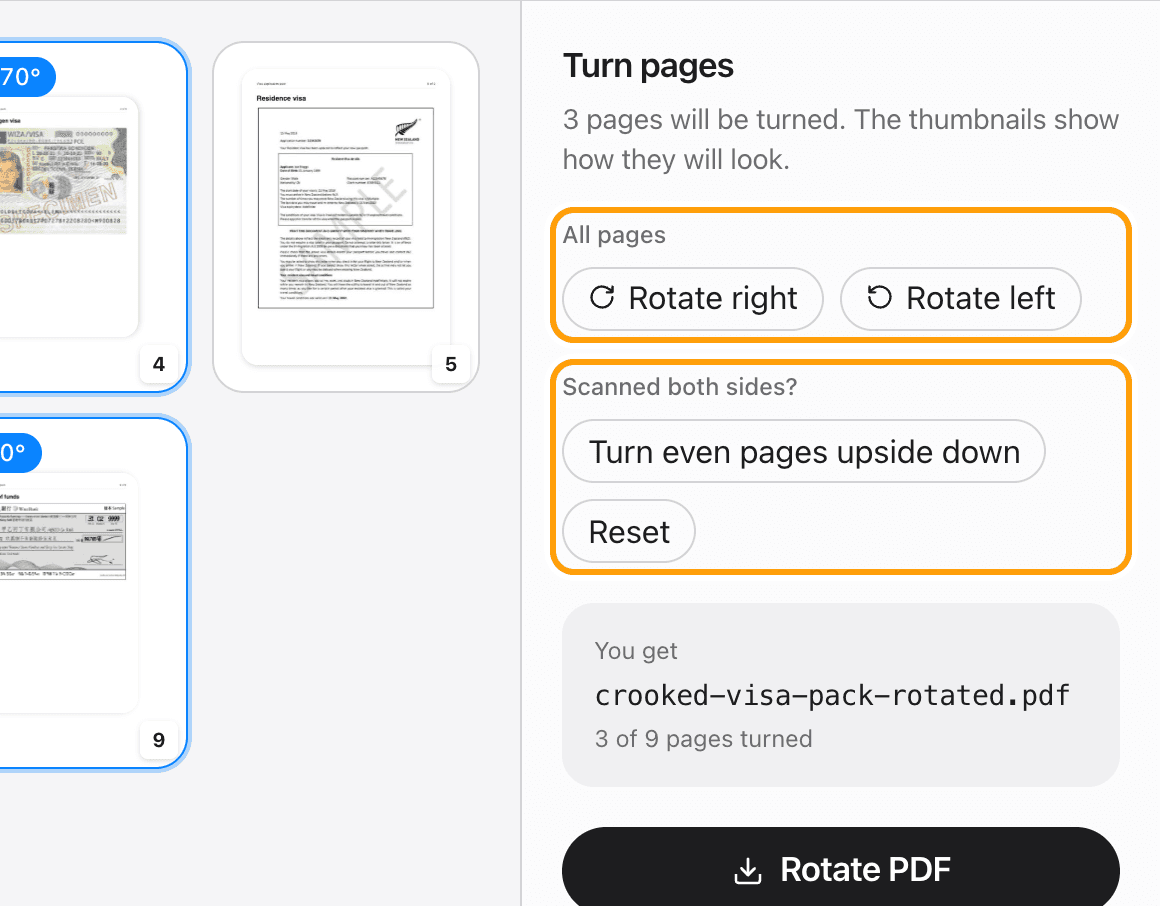
Or turn every page at once
Rotate right and Rotate left turn the whole document.
Scanned both sides and every back page came out upside down? Turn even pages upside down fixes all of them in one click.
Step 4
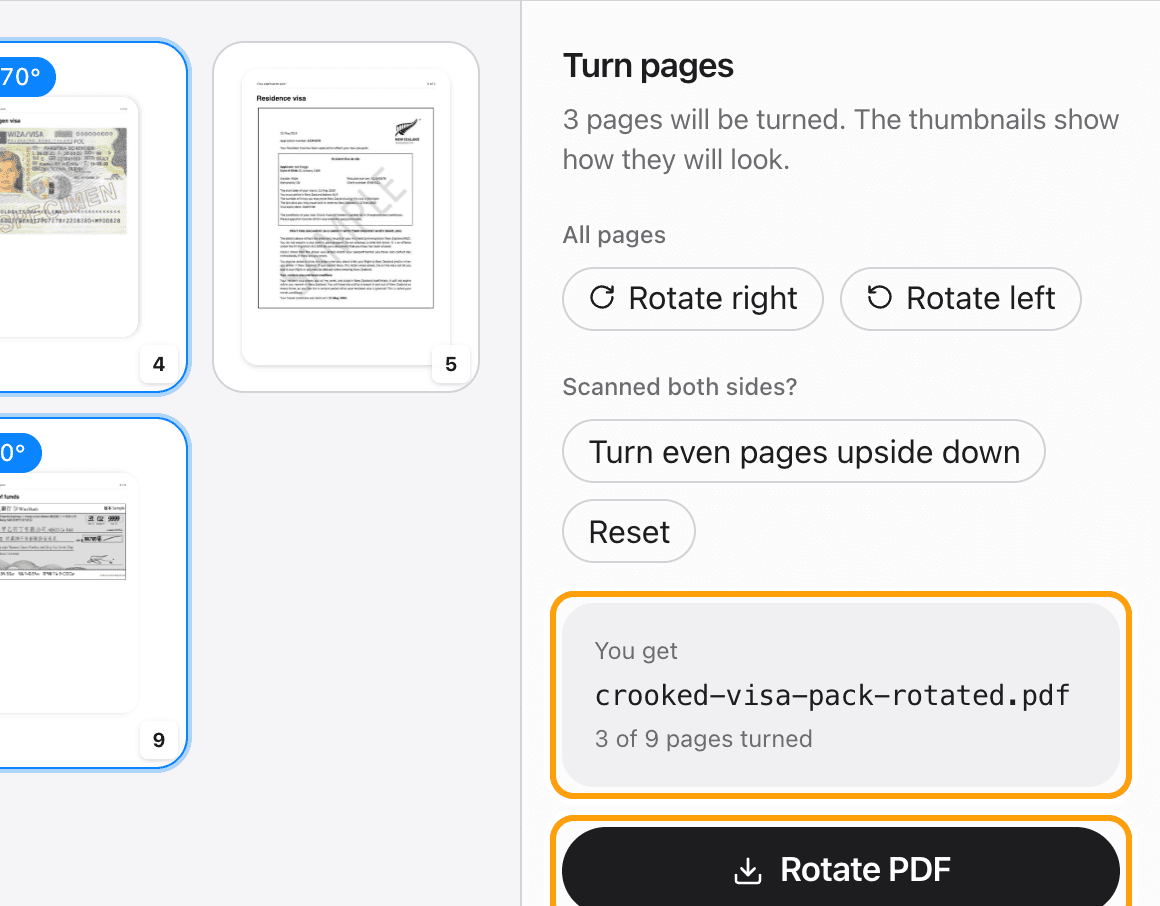
Rotate and save
Click Rotate PDF and the new file saves to your device, turned for good: every viewer, printer and upload form sees it the right way up.
Rotating only changes which way each page is turned. Text, images and file size stay exactly as they were.
Ways to rotate
Rotate a single page
Click just that page. The rest of the document is left exactly as it was.
Rotate all pages
Rotate right or Rotate left turns every page a quarter turn. Click twice to turn the whole PDF 180 degrees.
Fix upside-down pages from a double-sided scan
Turn even pages upside down rotates pages 2, 4, 6 and on by 180 degrees, which is how a duplex scan of flipped sheets comes out.
Rotate a PDF permanently
Turning a page in a viewer only lasts until you close it. This saves the rotation into the file, so it opens the right way everywhere.
Fix a sideways scan
Pages that were scanned sideways already carry a rotation. Each click turns them from where they are now, so what the thumbnail shows is what you get.
Rotate and reorder
Edit in the PDF editor opens the same file on the pages view, where you can also drag pages into order and delete the ones you do not need.
Questions
How do I rotate a PDF without uploading it?
Choose your PDF above, click the pages to turn, and click Rotate PDF. It happens in your browser, on your device. The file is never sent anywhere.
Is it free?
Your first download is free, with no account and no watermark. After that, downloading needs Pro, which is a one-time purchase.
Does rotating lower the quality?
No. Rotating only changes which way each page is turned. Nothing is re-encoded, so text, images and file size stay the same.
Is the rotation saved permanently?
Yes. It is written into the PDF, so it opens the right way in Preview, Acrobat, a browser, a printer or an upload form.
Can I rotate just one page?
Yes. Click that page. Every other page stays as it was.
What if my PDF has a password?
Open it in the PDF editor with its password first. A locked file cannot be read until it is unlocked.
Does it work on a Mac, iPhone or Windows?
Yes. It runs in any modern browser: Safari, Chrome, Edge or Firefox, on a Mac, a PC or a phone.
Ready to straighten your PDF?
Choose a PDFThe same PDF editor, on your Mac
Edit, sign, merge and compress PDFs offline, in their own window, and convert images, video, audio and documents too. Everything stays on your Mac.