
Extract pages from a PDF
Pick any pages, next to each other or not, and save them as a new PDF. Your file never leaves this device.
Choose a PDF
Or drop one here.From your files, downloads, or wherever it landed.
Your file stays on this device
- Never uploaded
- Any pages, any gaps
- First download free
How to extract pages from a PDF
Four steps, and the pick is written out in page numbers before you save.
Step 1
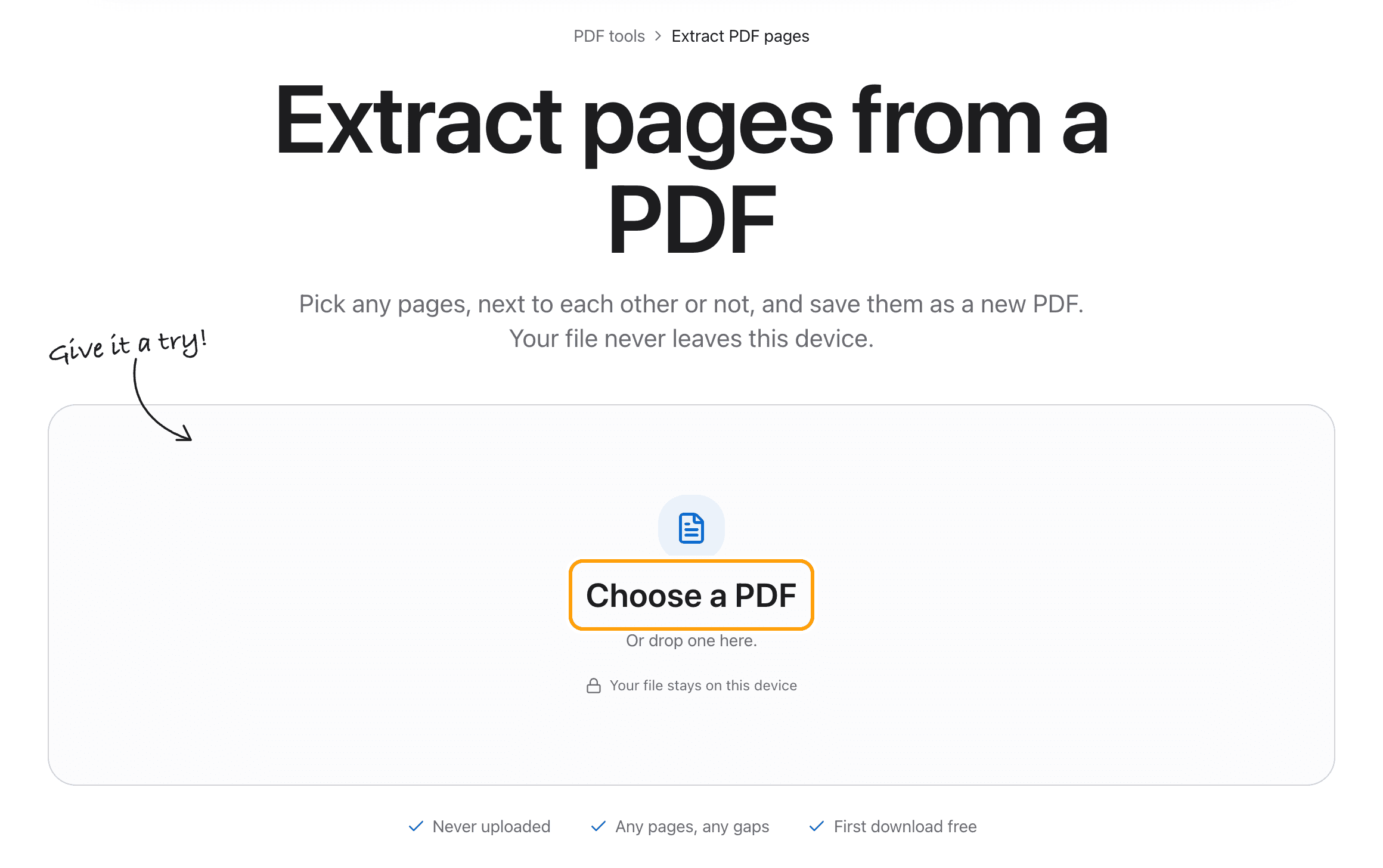
Choose your PDF
Click Choose a PDF, or drop the file anywhere on this page.
Every page shows up as a thumbnail. Nothing is sent to a server.
Step 2
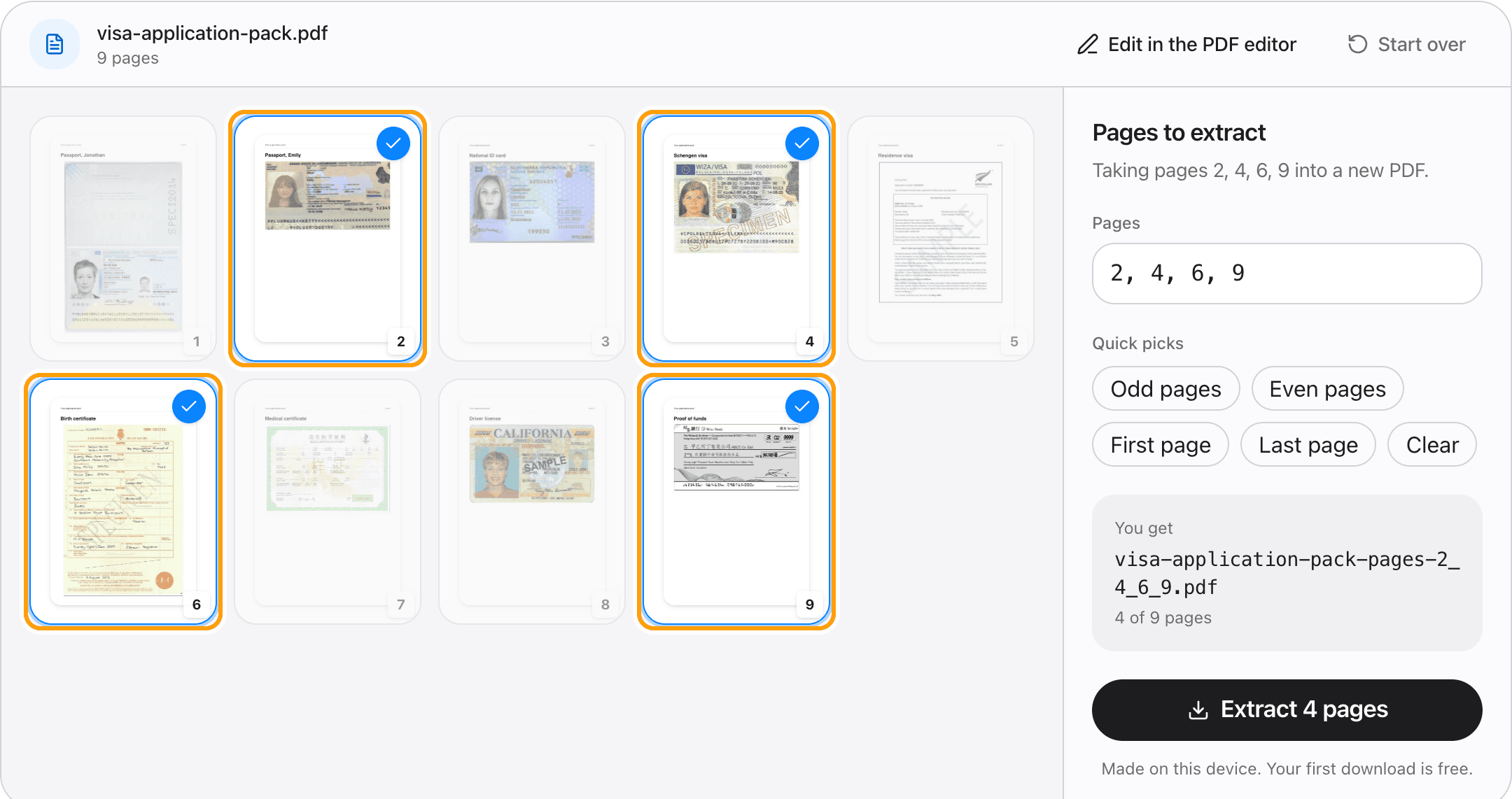
Click the pages you want
Each page you click gets a blue tick, and the ones you leave fade back. Click again to take a page out.
Here, a nine-page visa pack holds documents for two people. Only Emily's four are needed for her application.
Step 3
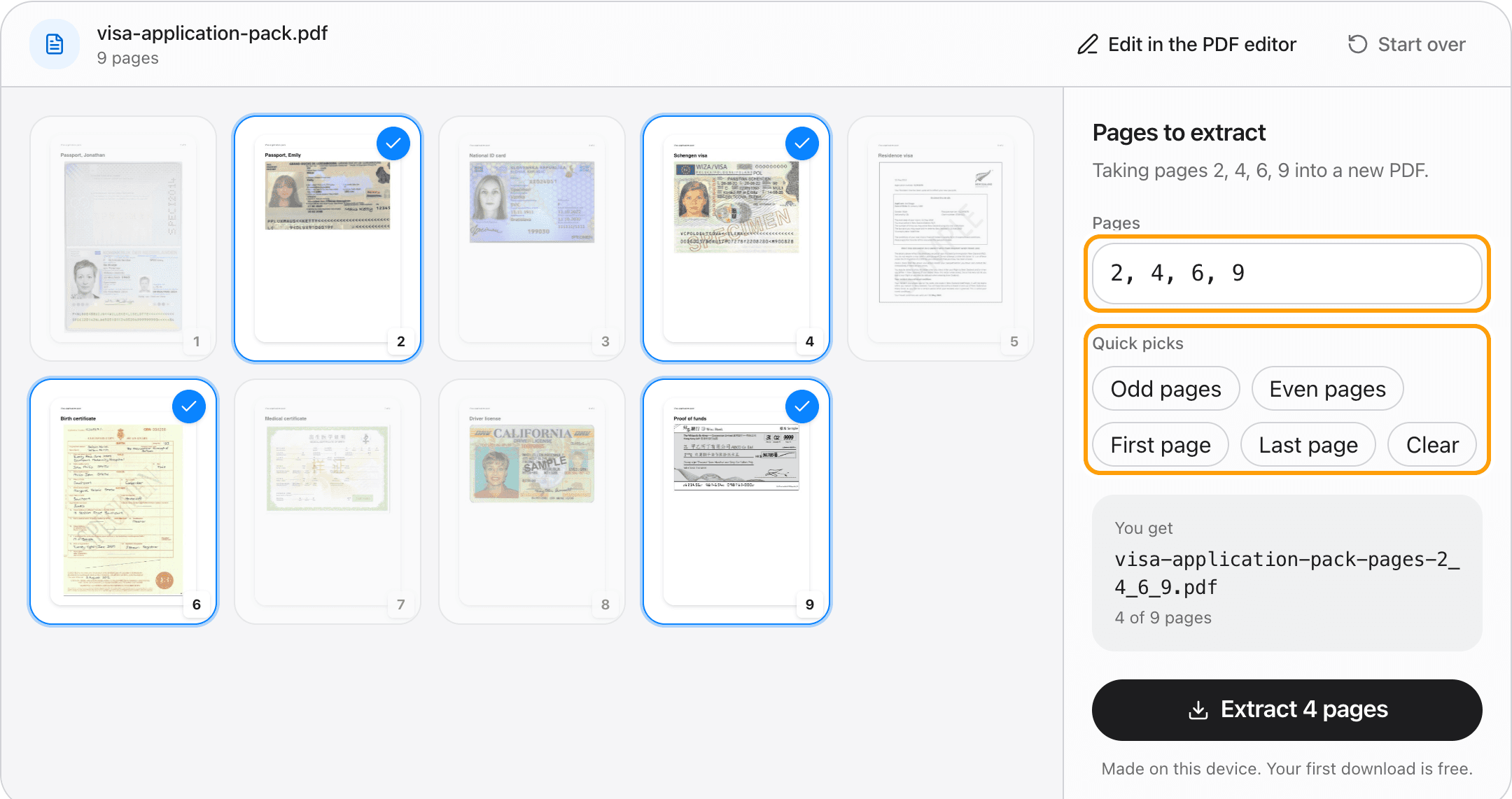
Or type them
The Pages box writes your pick out as a list, and takes one too: 2, 4, 6, 9 or 5-7, the way a print dialog does.
Quick picks take every odd or every even page in one click.
Step 4
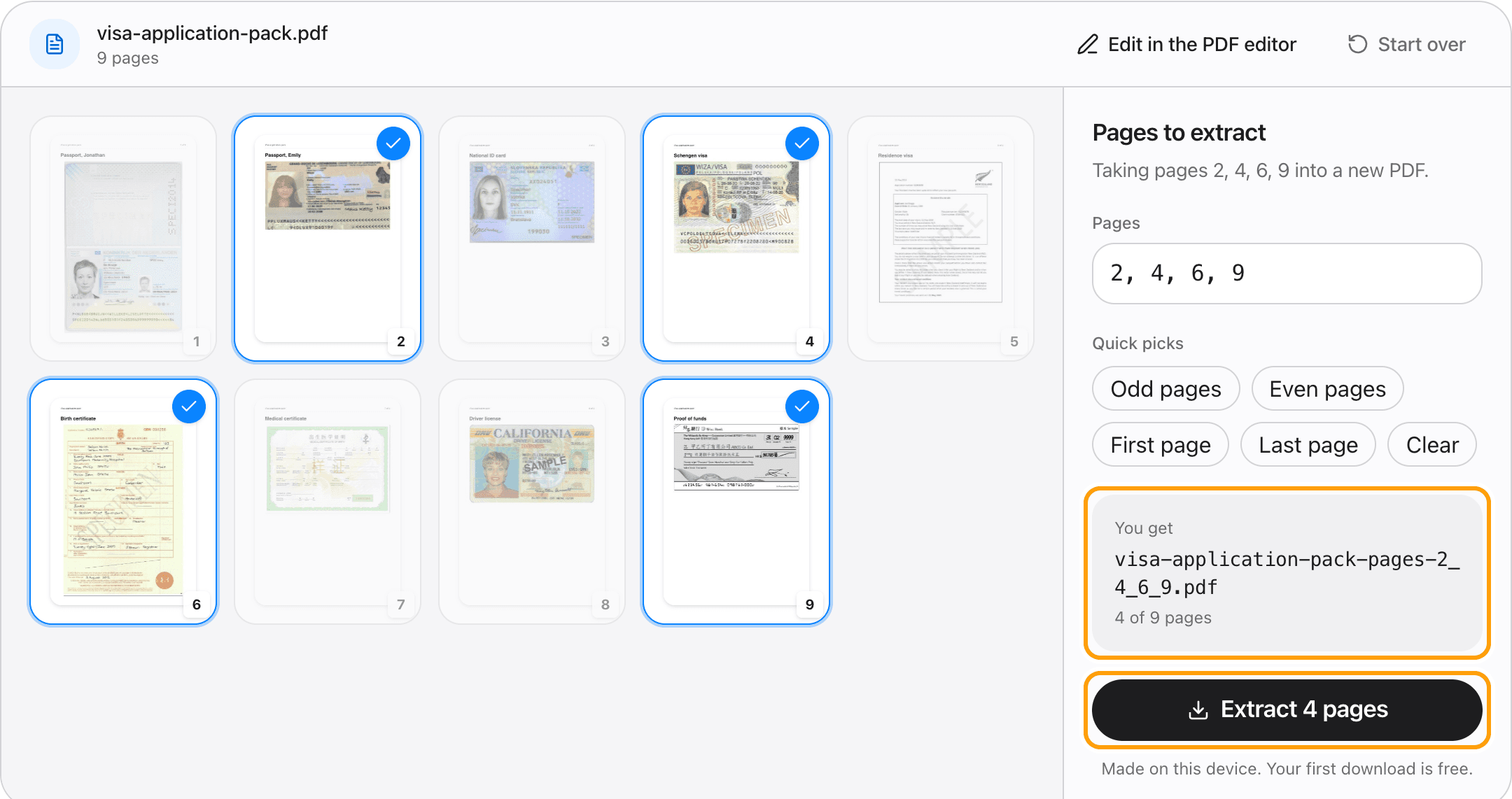
Extract and save
Click Extract and the picked pages save as a new PDF, named after the pages it holds.
Pages are copied as they are, so text stays sharp and selectable. Your original file is not changed.
Ways to extract
Extract pages that are not next to each other
Click them one by one, or type them with commas: 2, 4, 6, 9.
Extract a range of pages
Type 5-12, or 10- for page 10 to the end. For one range, Split PDF does the same job.
Extract odd or even pages
The quick picks take every odd or every even page, which is how you pull the fronts out of a double-sided scan.
Extract a single page
Click one page, or type its number. The file is named after that page.
Put the extracted pages in a new order
Edit in the PDF editor opens just the picked pages in the page grid, where you can drag them into any order.
Take pages out instead
When it is easier to say what goes than what stays, Delete PDF pages works the other way round.
Questions
How do I extract pages from a PDF without uploading it?
Choose your PDF above, click the pages you want or type their numbers, and click Extract. It happens in your browser, on your device. The file is never sent anywhere.
Is it free?
Your first download is free, with no account and no watermark. After that, downloading needs Pro, which is a one-time purchase.
What is the difference between extract and split?
Split keeps one run of pages, like 3 to 8. Extract takes any pages at all, like 2, 4 and 9, and puts them together in one new PDF.
Does extracting change my original PDF?
No. The picked pages are copied into a new file. The original keeps every page.
Are the pages still searchable?
Yes. Each page is copied as it is, so text stays real text and nothing is recompressed.
What if my PDF has a password?
Take it off first with Unlock PDF, then extract the pages you need.
Ready to pull out the pages you need?
Choose a PDFThe same PDF editor, on your Mac
Edit, sign, merge and compress PDFs offline, in their own window, and convert images, video, audio and documents too. Everything stays on your Mac.