
Guides
How to Convert M4A to MP3 on Mac (Voice Memos Included)

You recorded something on your iPhone or your Mac. Maybe an interview, a song idea, a note for a colleague. Now someone wants it as an MP3, or a website won’t take the .m4a file, or your car stereo just stays silent.
Good news: your Mac can already do this, and nothing has to be uploaded anywhere. Here’s how, start to finish.
First, Get the Recording Out of Voice Memos
If your M4A is already sitting in a folder, skip ahead. If it’s in Voice Memos, this is the part that trips most people up, because there’s no Export or Save button anywhere.
The trick is to drag it. Grab the recording from the list and drop it onto your Desktop or any Finder folder. You get a copy as an .m4a file, and the original stays in Voice Memos.
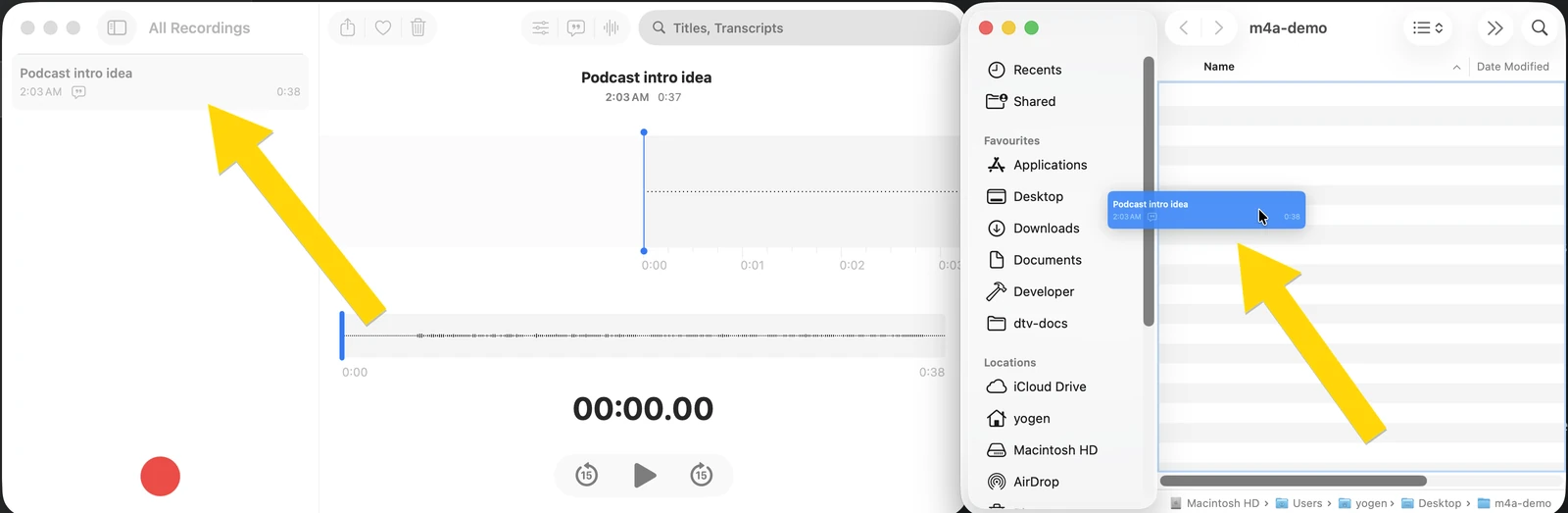
Recorded it on your iPhone? Open the recording, tap Share, then Save to Files and pick iCloud Drive. It’ll show up in Finder on your Mac a moment later.
Option 1: The Music App (Free, Already on Your Mac)
Apple hid an MP3 converter inside the Music app. It takes a little setup the first time, then it’s quick.
Turn on the MP3 encoder (once)
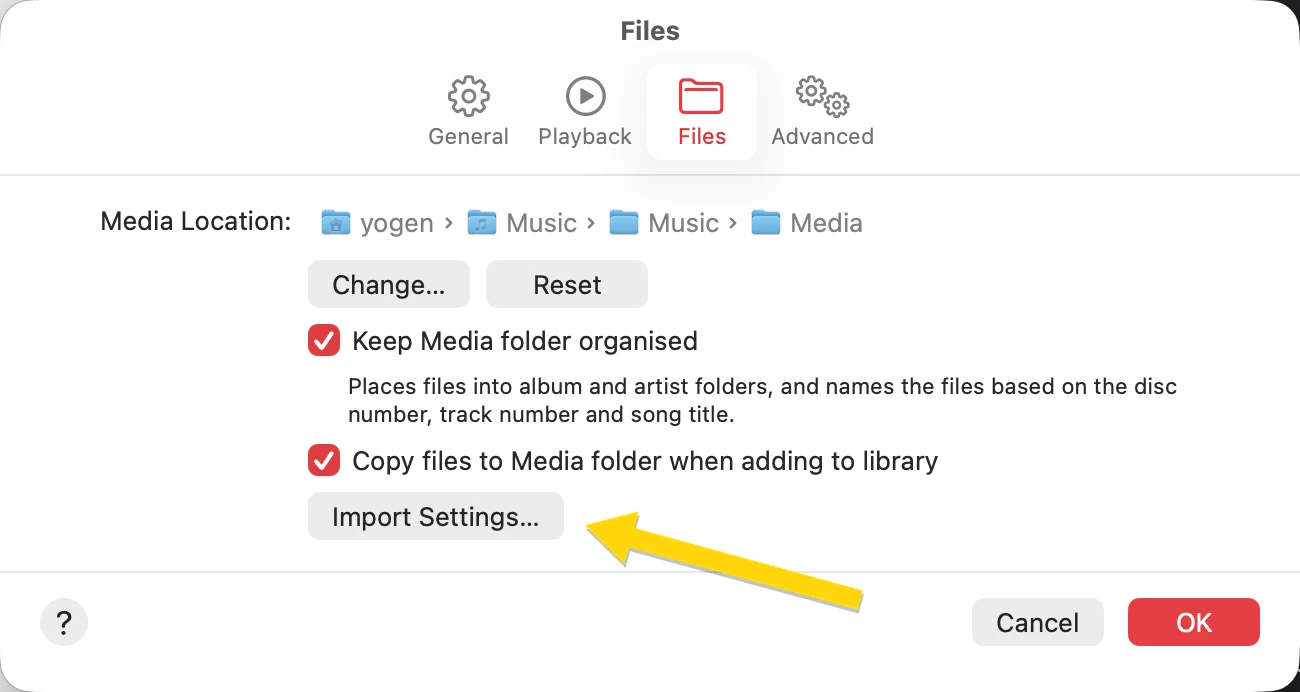
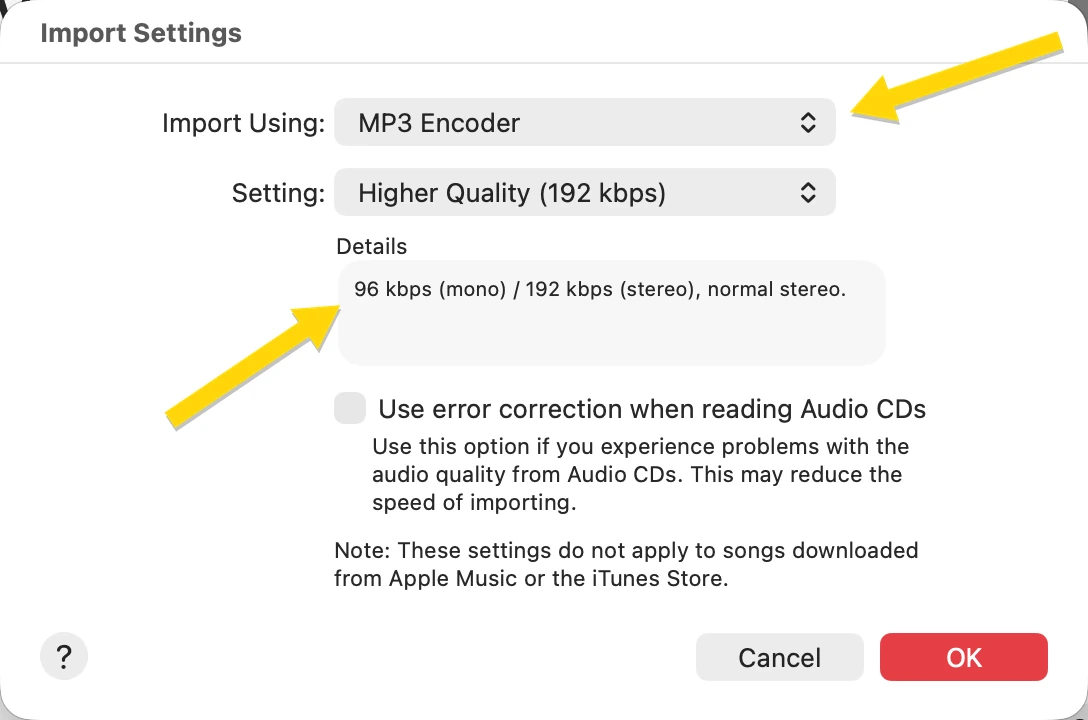
Open Music, go to Settings, click the Files tab, then Import Settings. Change Import Using to MP3 Encoder and click OK. Music remembers this from now on.
Add your recording to Music
Drag the .m4a file into the Music window.
Make the MP3
Click the recording once to select it, then go to File, Convert, Create MP3 Version. The MP3 shows up right next to it. Right click it and choose Show in Finder to get the file.
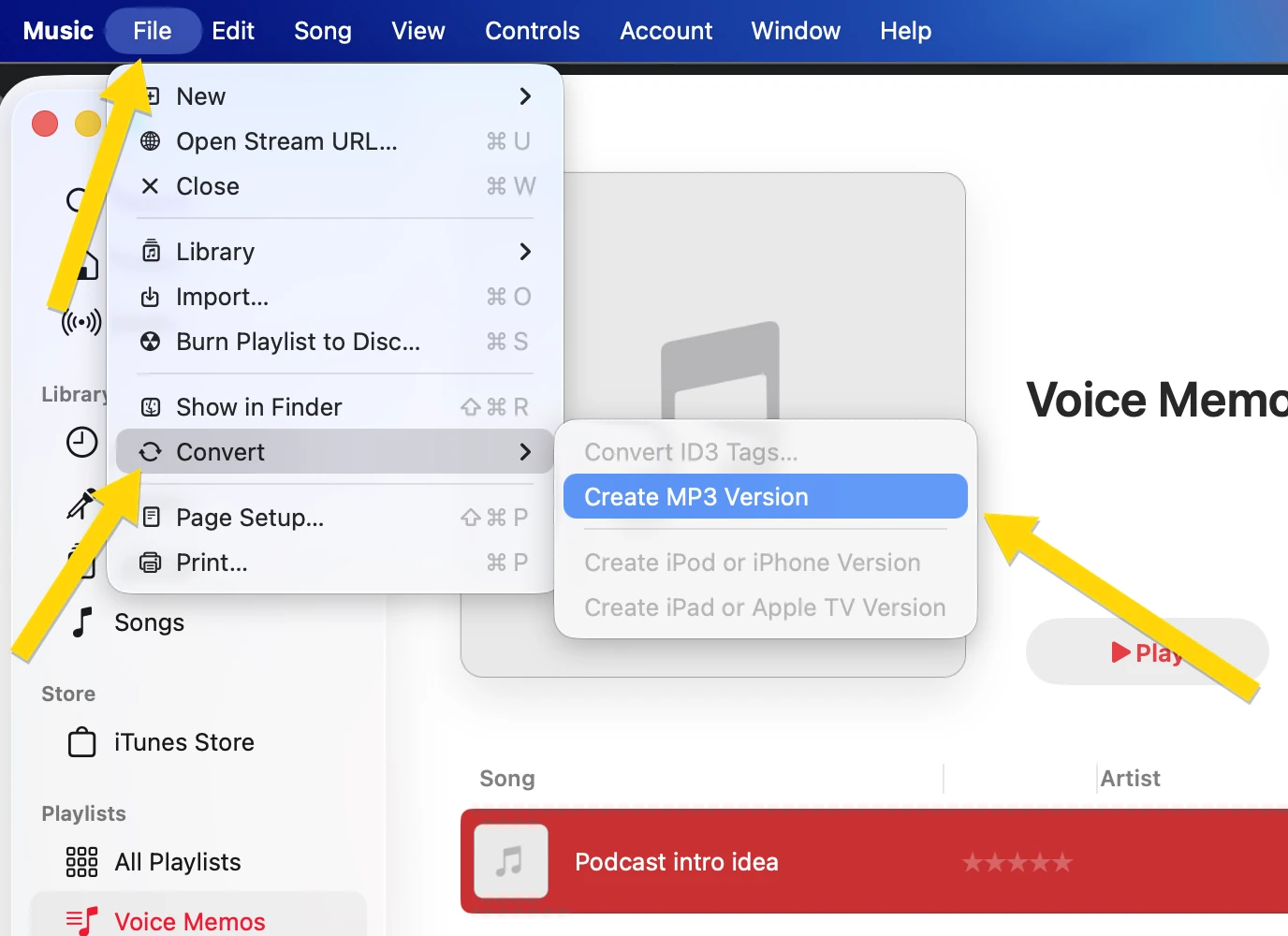
That’s it. It works well for a file or two. The downside is that every recording has to go into your music library first, and both the M4A and the MP3 stay there until you delete them. If you have a whole folder of memos, that gets old fast.
Option 2: TeraConvert (Two Clicks, No Library)
I built TeraConvert because I didn’t want to upload my files to some website just to change a format. It converts right on your Mac, so your recording never leaves it.
Drop your M4A in
One file in the browser, right here on this page, or a whole folder at once in the Mac app.
Choose MP3
For voice recordings, pick 128 kbps. For music, 256 or 320.
Save it
Click the download button and the MP3 lands in your Downloads folder, with the same name as your recording.
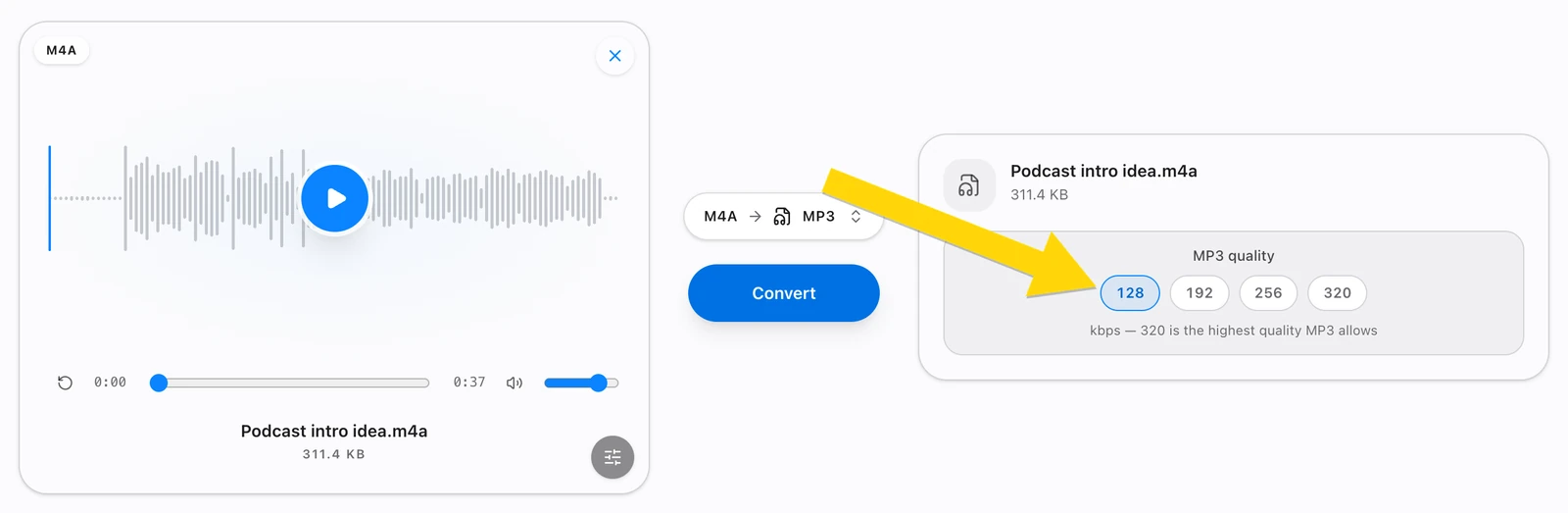
You can try it below. Drop your M4A in and you’ll have an MP3 in a few seconds. It also lives on its own page, the M4A to MP3 converter, if you want to come back to it.
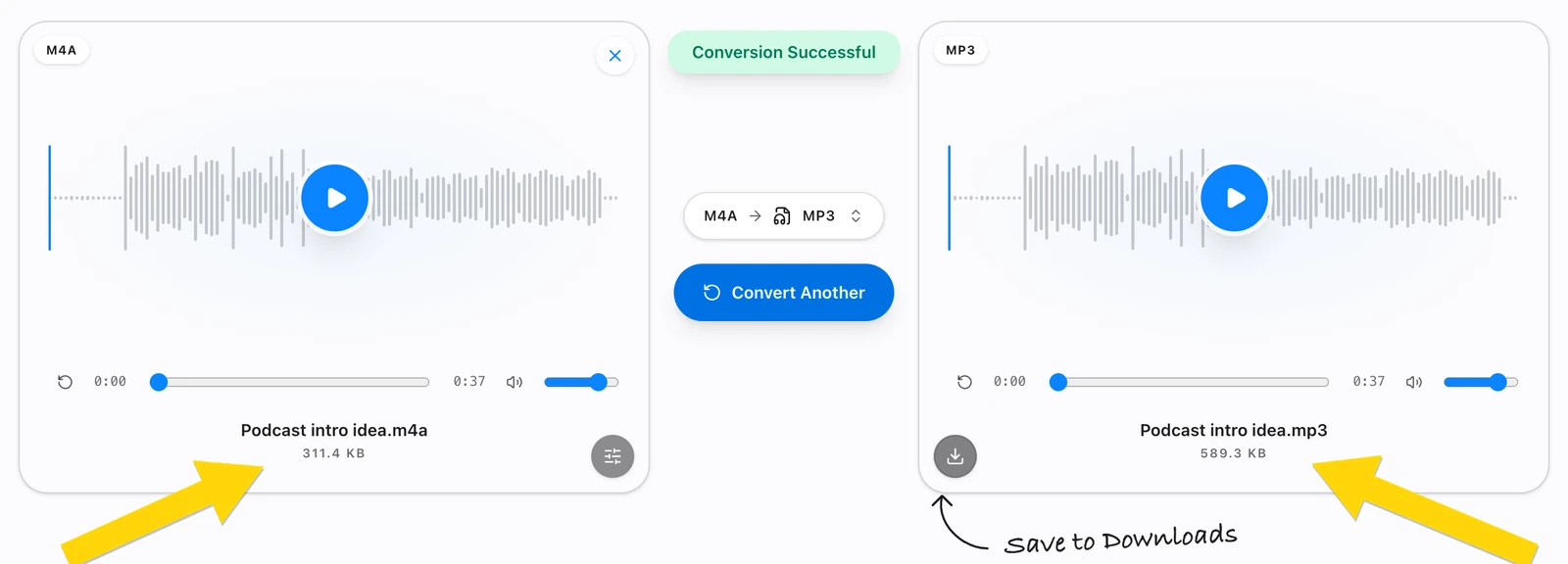
Why Is the MP3 Bigger Than the Original?
This catches people off guard. You’d expect converting to make the file smaller, but with M4A to MP3 it usually goes the other way. My 38 second voice memo was 319 KB. As an MP3 it came out at around 450 to 600 KB, depending on the quality I picked.
Nothing went wrong. M4A is just better at squeezing audio than MP3 is, so MP3 needs more space to sound the same. And picking a higher quality won’t make your recording sound better than it did. It only makes the file bigger. For anything spoken, 128 kbps is plenty.
Do You Even Need an MP3?
Sometimes you don’t. iPhones, Macs, iPads and most newer phones and browsers play M4A just fine. If the person you’re sending it to has one of those, send the M4A as it is.
You need MP3 when something only accepts MP3: an older car stereo, a cheap MP3 player, an upload form that rejects .m4a, or someone’s older software. MP3 plays on pretty much everything, and that’s the whole reason to make one.
Either way, keep your original M4A. It’s smaller, and it’s the version to go back to if you ever need another copy.
Questions People Ask
Will converting ruin the sound quality?
No. There’s a tiny loss because the audio gets compressed again, but on a voice recording or a normal pair of speakers you won’t hear it.
Can I convert songs I downloaded from Apple Music?
No. Apple Music downloads are locked to the Music app, and no converter can change them. Songs you bought from the iTunes Store aren’t locked and convert fine.
Can I convert a lot of voice memos at once?
Yes. In the Music app, select them all and use Create MP3 Version once. In the TeraConvert Mac app, drop the whole folder in. Batch converting is part of Pro.
What about QuickTime Player?
It can’t make MP3s. Its Export As, Audio Only option saves another M4A.
Does my recording get uploaded anywhere?
Not with either option here. The Music app and TeraConvert both convert on your Mac, and the converter on this page runs inside your browser tab.
What if my file is a WAV instead?
That one actually gets a lot smaller as an MP3. Here’s how to convert WAV to MP3 on a Mac.
That’s really all there is to it. Drag the memo out, turn it into an MP3 with whichever option suits you, and send it on its way. If you get stuck on any of it, tell me through the contact page. I read everything myself.
All product names, logos, and trademarks are the property of their respective owners. Apple Music, iTunes, Voice Memos, QuickTime, Finder, and macOS are referenced here for identification only. TeraConvert is not affiliated with, endorsed by, or sponsored by any of them.