
Guides
How to Convert WAV to MP3 on Mac, Offline

I exported a 30 second audio clip on my Mac the other day, and it came out at 5 MB. Thirty seconds, 5 MB. That is what WAV files do: a folder of recordings quietly becomes the biggest thing on your drive, and the day an email refuses the attachment is usually the day you find out.
There are two ways to fix that on a Mac, and neither one uploads your audio anywhere. Here they are, then the parts worth knowing before you convert something you care about.
How to Convert WAV to MP3 on a Mac
Both routes run entirely on your Mac, with no internet connection needed and no file leaving the machine. They differ on how many files you have and how much setup you are willing to do.
1. The Music app, already on your Mac
Switch the encoder to MP3
Open Music, then Settings, then the Files tab, then Import Settings. Change Import Using to MP3 Encoder and pick your quality. The setting is remembered, so this is a one time job.
Add the WAV to your library
Drag the file into Music. The convert command only works on files the library knows about, which is the main catch with this route.
Convert it
Select the file, then File, Convert, Create MP3 Version. The MP3 appears next to the original in your library; right click it and choose Show in Finder to get at the actual file.
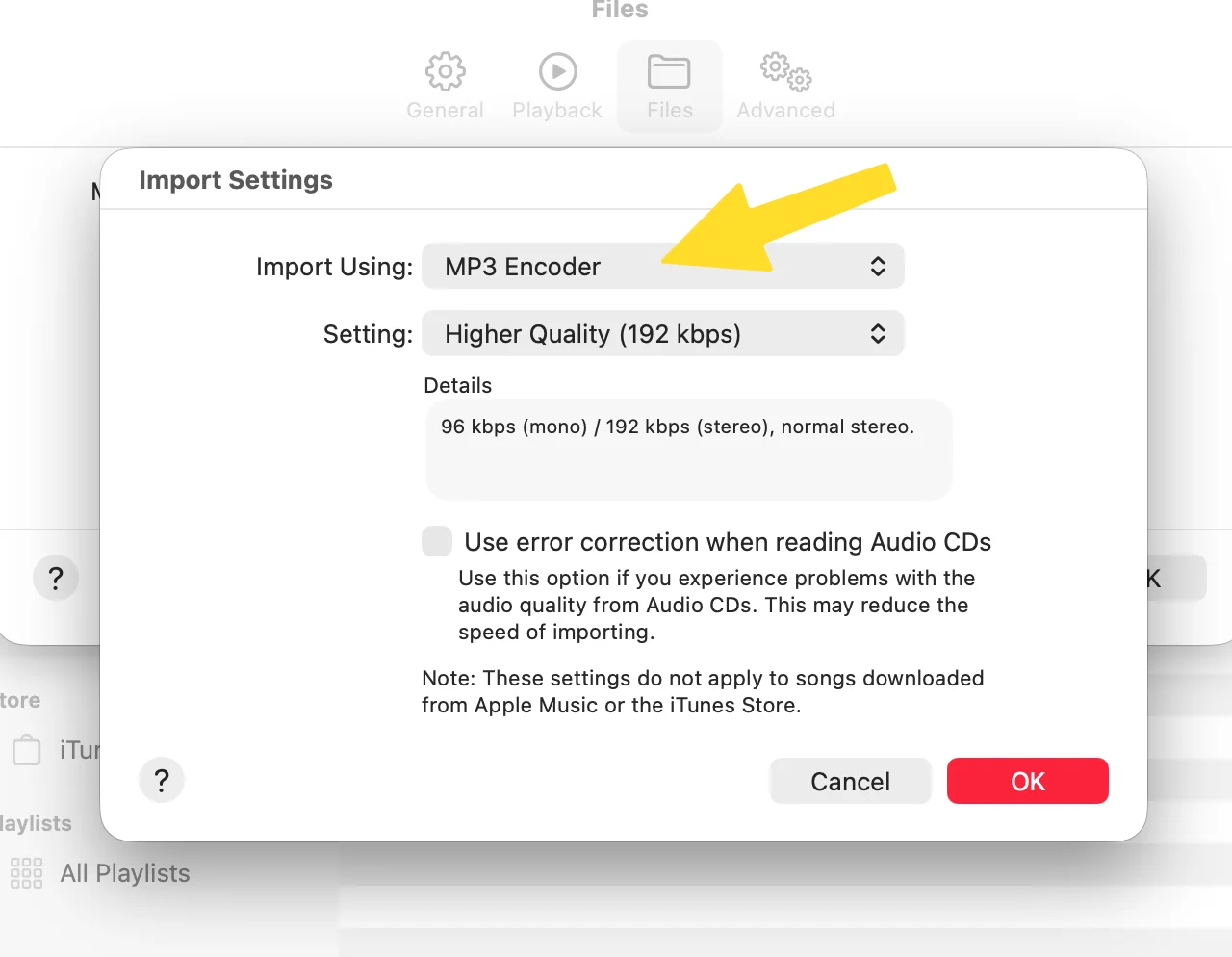
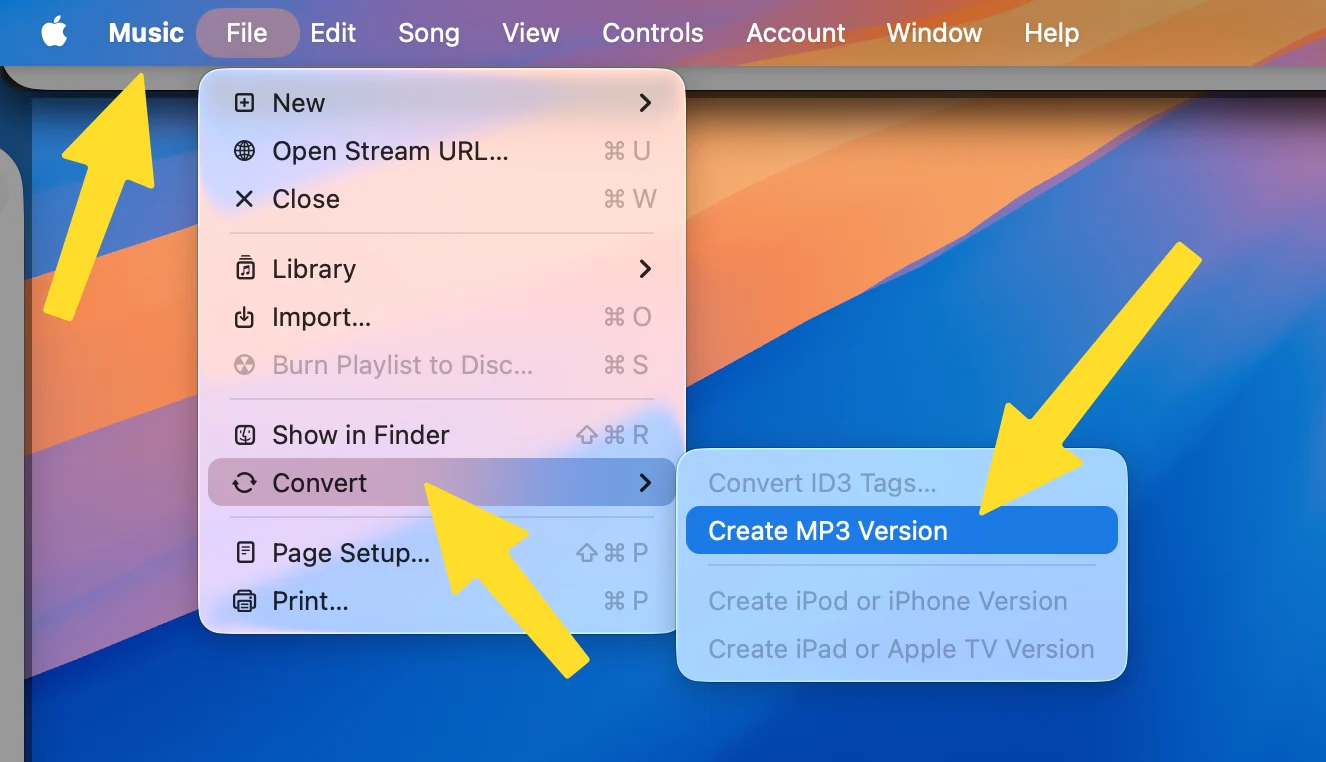
It is free, it is offline, and I want to be fair to it. But notice what it asked of you: the setting is three menus deep, the quality silently follows whatever the import setting says, and every file has to be imported into your music library first. For a folder of interview recordings that have no business in a music library, it is the wrong shape.
The other free route is FFmpeg in the Terminal, one typed command per file, any quality you want. If you already use the Terminal, use it and skip every app including mine. If you have never opened the Terminal, setting it up will cost you more time than it saves, and there is no shame in that.
2. TeraConvert, what I use
Drop the file in
One WAV, or a whole folder of them in the Mac app. Nothing uploads: the conversion runs on your own device, which is why it still works with the wifi off.
Pick MP3
One choice covers every file in the drop. The quality selector on the output card defaults to 320 kbps, the highest MP3 allows, with 128, 192 and 256 there when a smaller file matters more.
Save it
The finished file lands next to the original, or in a dated folder inside Downloads for a batch. A 30 second clip takes a couple of seconds; a long recording takes proportionally longer.
The converter below is the real thing, not a screenshot of one, so you can drop a WAV on it and watch it happen before installing anything.
Rather than take my own word for it, I measured a run. A real 30 second recording went in at 5.0 MB and the MP3 came back at 1.1 MB, about 4.4 times smaller. I checked the finished file by hand rather than trusting the label: 320 kbps, the highest quality MP3 allows.

The first conversion is free and does not need an account. After that, converting requires TeraConvert Pro, a one-time purchase rather than a subscription, and the desktop app is a macOS download only.
A few limits worth knowing. The version in this page caps audio files at 100 MB, so a two hour recording needs the Mac app, which has no size cap and takes whole folders in one drop. And converting a batch of files at once is a Pro feature, not part of the free conversion.
TeraConvert is best when you just want the conversion done in seconds without your audio leaving your machine. If you want to compare options before trusting one tool, here are my own writeups on what actually happens to your files on CloudConvert and on the best private file converters for Mac.
Does Converting WAV to MP3 Lose Quality?
Yes, a little, and it cannot be undone. That is honest and worth saying plainly: shrinking the file is the whole point, so something is always dropped.
What makes it fine in practice is choosing the highest quality and being a little deliberate about which copy you keep. At 320 kbps the dropped part is the part you were not going to hear anyway. The mistake is not converting; the mistake is converting your only copy of something that matters and deleting the WAV.
And one thing people often ask: converting the MP3 back to WAV later works, but it does not bring the quality back. You just get a big file that sounds like the small one. Going back is for apps that insist on WAV files, not for fixing quality.
When You Should Actually Convert
Neither format is simply better. It depends on what the file is for, and the decision fits in one picture.
The whole decision in one picture. The conversion is the easy part; picking which copy you keep is the part worth a moment of thought.
Convert if the file’s job is to be heard or sent. Finished recordings, interview audio for a colleague, a demo for a client, anything going into an email or a chat. The MP3 does the same job at a quarter of the size.
Convert if WAV archives are eating your disk. Recordings you only ever play back do not need 10 MB per minute. Convert them, check that the MP3 plays, and reclaim the space.
Don’t convert your only copy of a master. Anything you might edit, remix, or re-use again should stay lossless. If the size still bothers you, WAV to FLAC cuts it roughly in half with zero loss, and that conversion is reversible.
Don’t expect to change your mind later. The conversion only goes one way. If you are not sure, keep the WAV next to the MP3 until you are.
Background
What Is WAV, and What Is MP3?
WAV is audio saved raw. Everything the microphone picked up is kept, with nothing thrown away. That is exactly what you want while recording or editing, and it is why most audio apps save WAV by default. The price is size: about 10 MB for every minute, whether that minute is a song or silence.
MP3 was made for listening and sharing. It shrinks the audio by keeping the parts you can hear and dropping the parts you cannot. The same minute fits in about 2.4 MB at the highest quality, and it plays on basically every phone, computer, and speaker made in the last twenty five years.
So the key point is that these are not two qualities of the same thing, they are two jobs. WAV is the working copy. MP3 is the copy you share.
Lossless vs. Lossy
One idea explains every answer above, so it is worth thirty seconds.
A lossless format keeps every bit of the sound. WAV does it by not compressing at all. FLAC does it by squeezing the file the way a ZIP does: smaller on disk, but perfectly identical when played. You can convert between lossless formats forever and the audio never changes.
A lossy format like MP3 gets small by throwing sound away. It is smart about what it throws: sounds hidden behind louder sounds, and detail your ear was never going to catch. But whatever it drops is gone from the file, permanently.
Think of it like a photocopy. The first copy looks just like the original, and for reading, it is the original. But you would not copy the copy five times, and you would not throw away the only original just because a copy exists.
Is WAV Better Quality Than MP3?
On paper, yes. To your ears, usually no.
At 320 kbps, the highest quality MP3 allows, almost nobody can tell the MP3 from the original WAV on normal speakers, earbuds, or a car stereo. If your plan for a file is to listen to it, a top-quality MP3 sounds the same and takes a quarter of the space.
The difference becomes real in two situations. The first is editing: every save and re-export of an MP3 loses a little more, like copying a photocopy. The second is the future: a WAV can become any format later at full quality, while an MP3 can only pass on what it still has.
The Real Differences, Day to Day
This is not a compatibility problem. Your Mac opens both formats fine, and so does almost everything else. The differences show up in three everyday places.
Disk space. One hour of WAV is about 600 MB. The same hour as a top quality MP3 is about 144 MB. If you have folders of voice recordings, meeting audio, or old exports sitting in WAV for no reason, this one conversion is the cheapest disk space you will ever get back.
Sending files. Email limits, chat apps, and upload forms are all built for compressed audio. A five minute WAV is a 50 MB attachment that may not even send; the MP3 of it is about 12 MB and goes through without a fuss.
Editing. This is where MP3 pushes back. Audio apps open MP3s happily, but every save re-compresses the sound a little more. Do that a few times and you will start to hear it.
Conclusion
Most of the confusion around WAV and MP3 comes from treating them as a better and a worse version of the same thing, when they are really two different jobs: the copy you work on and the copy that travels. Once you separate those, the question answers itself: will I ever edit this again? If yes, it stays lossless. If no, a top-quality MP3 does everything the WAV did at a quarter of the size.
As I measured earlier, the conversion itself costs almost nothing. Seconds of time, no upload, and a file 4.4 times smaller that sounds the same on anything you would actually play it on. The only real decision is which copy you keep, and now you know how to make it.
All product names, logos, and trademarks are the property of their respective owners. Apple Music, iTunes, FFmpeg, CloudConvert, and macOS are referenced here for comparison and identification only. TeraConvert is not affiliated with, endorsed by, or sponsored by any of them.