
Vietnam e-Visa photo
Vietnam asks for a 4 x 6 cm photo on white, with no glasses at all since July 2026. Line it up here and save the file the portal accepts.
Choose your document
- Size
- 40 x 60 mm
- Digital file
- 600 x 900 px, up to 2000 KB
- Head height
- 31 to 36 mm
- Background
- White
Or drop it here. It stays on this device: nothing is uploaded anywhere.
- Face a window, with a plain light wall about a metre behind you.
- Ask someone to take it from 1.5 m away, phone at eye level, zoomed to 2x.
- Shoulders in the shot, face the camera, mouth closed.
- Never uploaded
- No watermark
- Free, no account
How to make a Vietnam e-Visa photo at home
Six steps with the real tool, and the photo never leaves your device.
Step 1
Choose your document and your photo
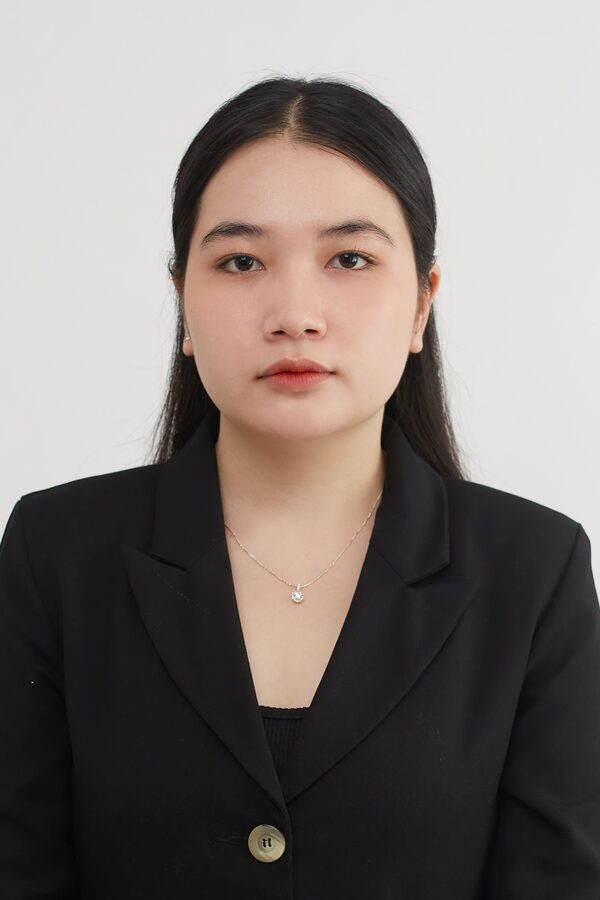
Pick Vietnam e-Visa and its rules appear beside it: 40 x 60 mm, a head of 31 to 36 mm, and a white background. Then choose your photo, or drop it on the card. It stays on your device.
Take it against a plain light wall, facing the camera, with your shoulders in the shot. Ask someone else to take it: a selfie comes out mirrored and too close.
Step 2
Let it line you up
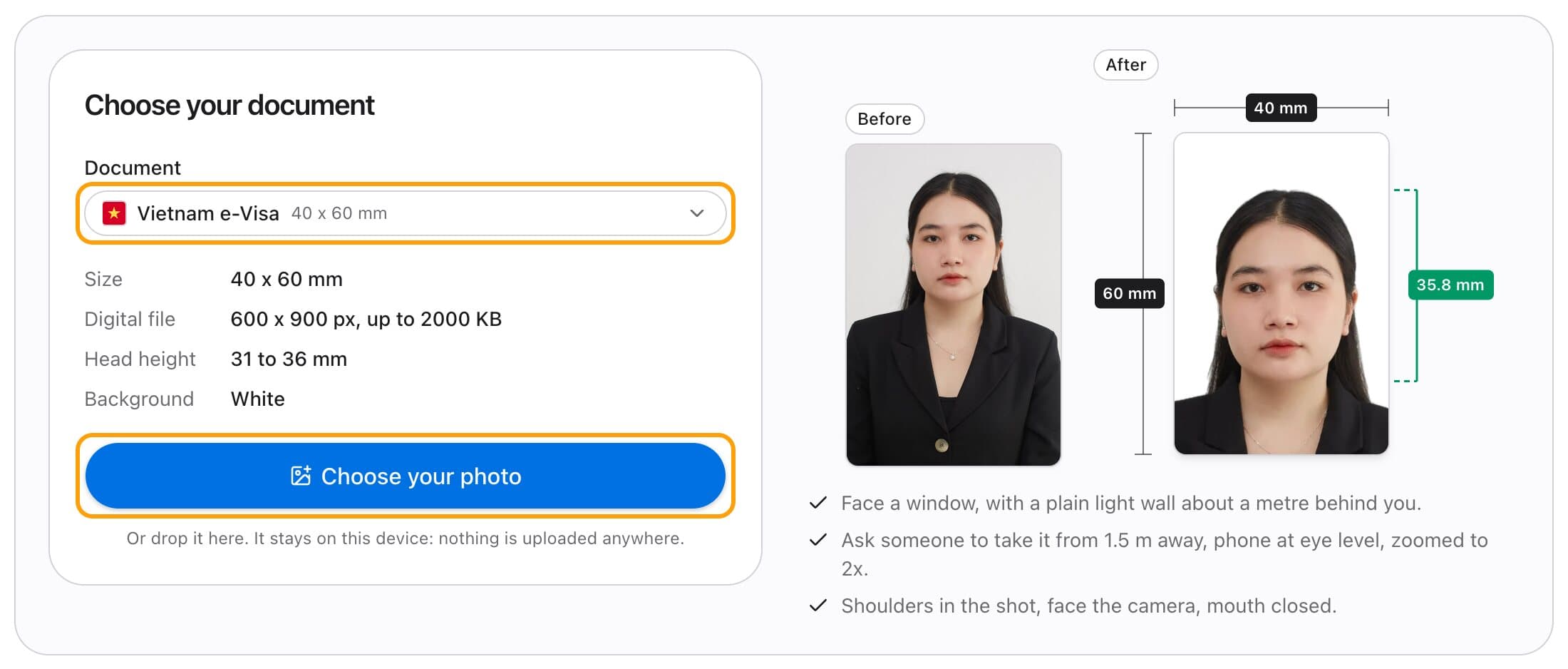
The tool finds your face, measures the top of your head and your chin, and crops to the Vietnam e-Visa rule: 31 to 36 mm from chin to crown on a 40 x 60 mm photo. A tilted head is levelled.
It balances the light, then checks what passport offices reject photos for: eyes open, mouth closed, facing the camera, no red eye, even light, a plain background, one face, enough detail to print. The green ruler shows your head height as it will print.
Step 3
Fine-tune if you want
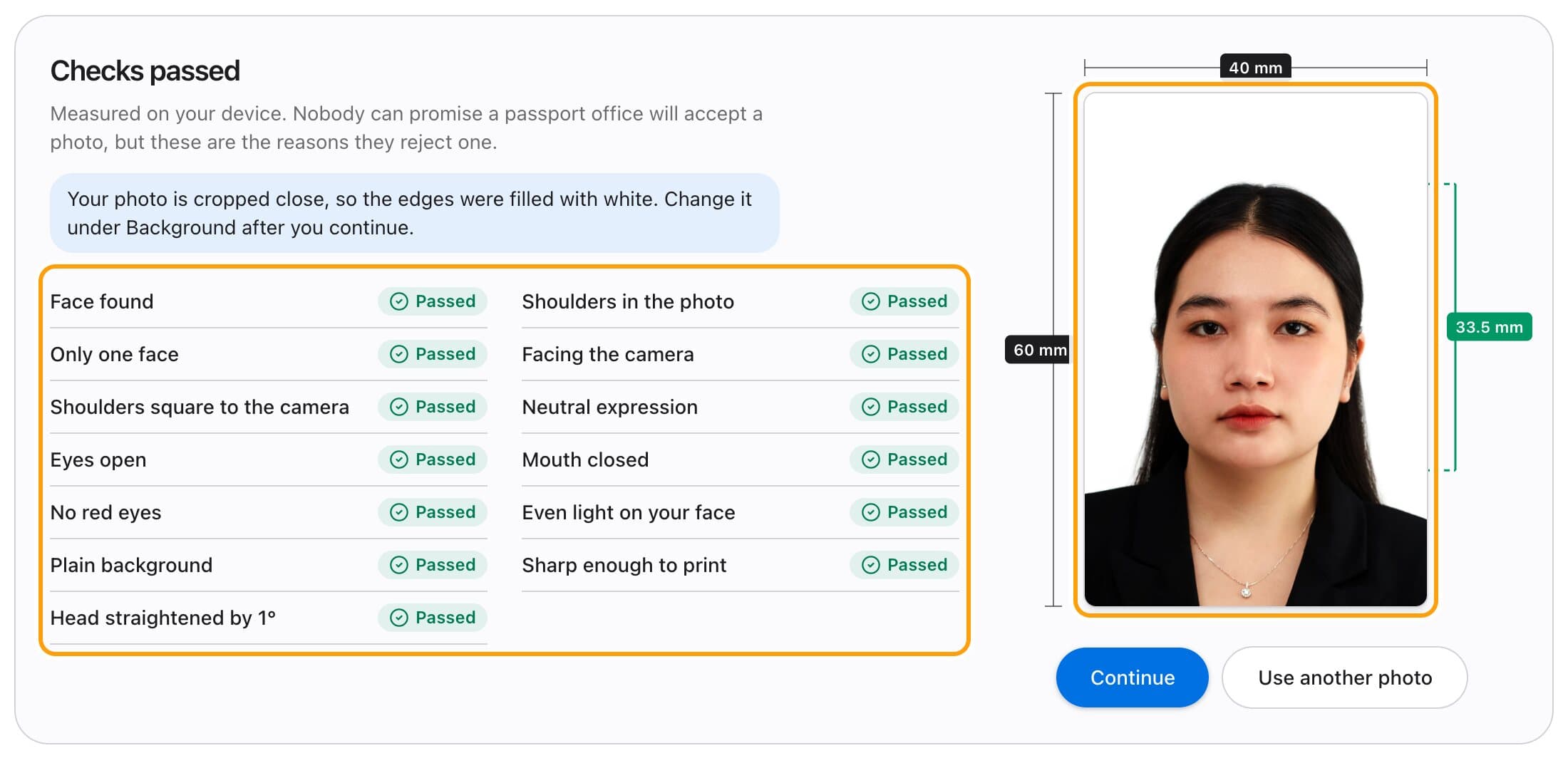
Most photos need nothing here. If you want it a little different, drag the photo, or use the two sliders.
Zoom changes the head size inside the shaded band, which is the Vietnam e-Visa limit. Straighten levels a head the tool could not.
Step 4
Fix the light and the background
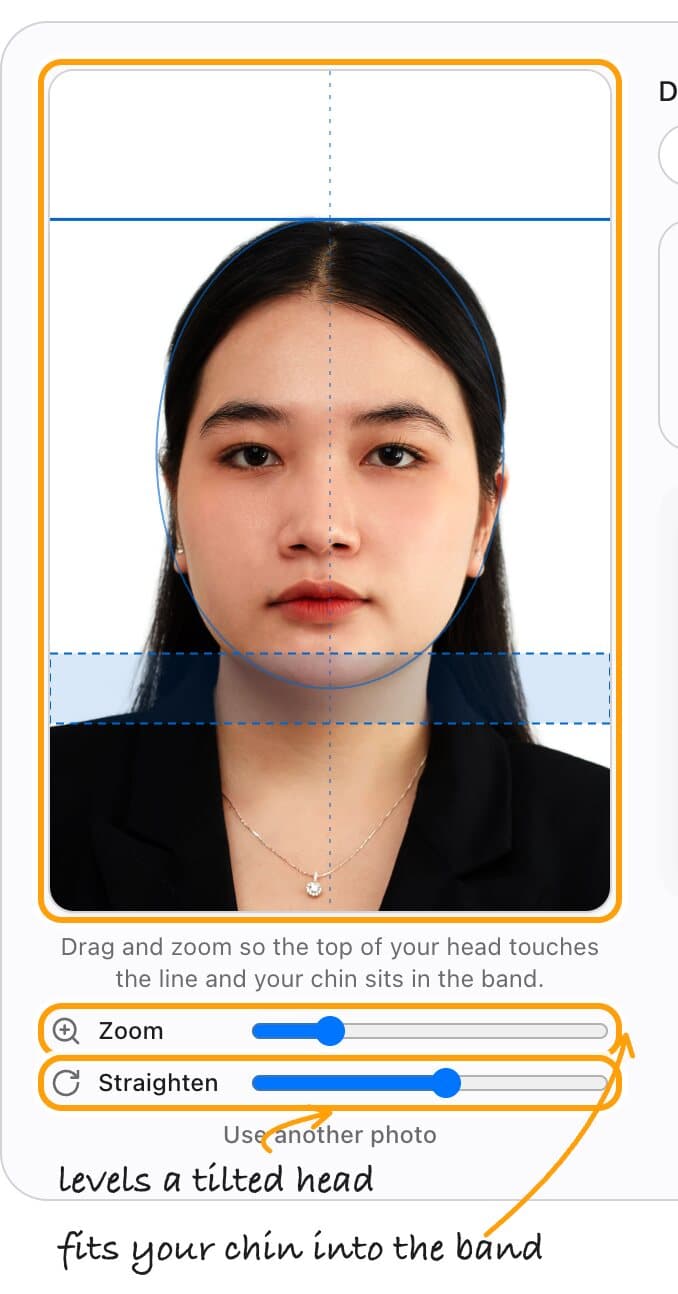
Studio light is already on: the tool balances the colour against the wall behind you, brings your face to studio brightness and softens the shadows, the way a photo booth's lights would. The Light tab fine tunes it, and Reset takes it off. It never smooths skin or changes your face.
Wall not plain? On the Background tab, pick White: you are cut out and placed on it, in your browser. A tick marks what a Vietnam e-Visa photo accepts: white. Already against a plain wall? Keep Original.

Step 5
Save the file
Save photo gives you a 600 x 900 px JPEG, between 10 and 2000 KB. That is the file the online form takes.
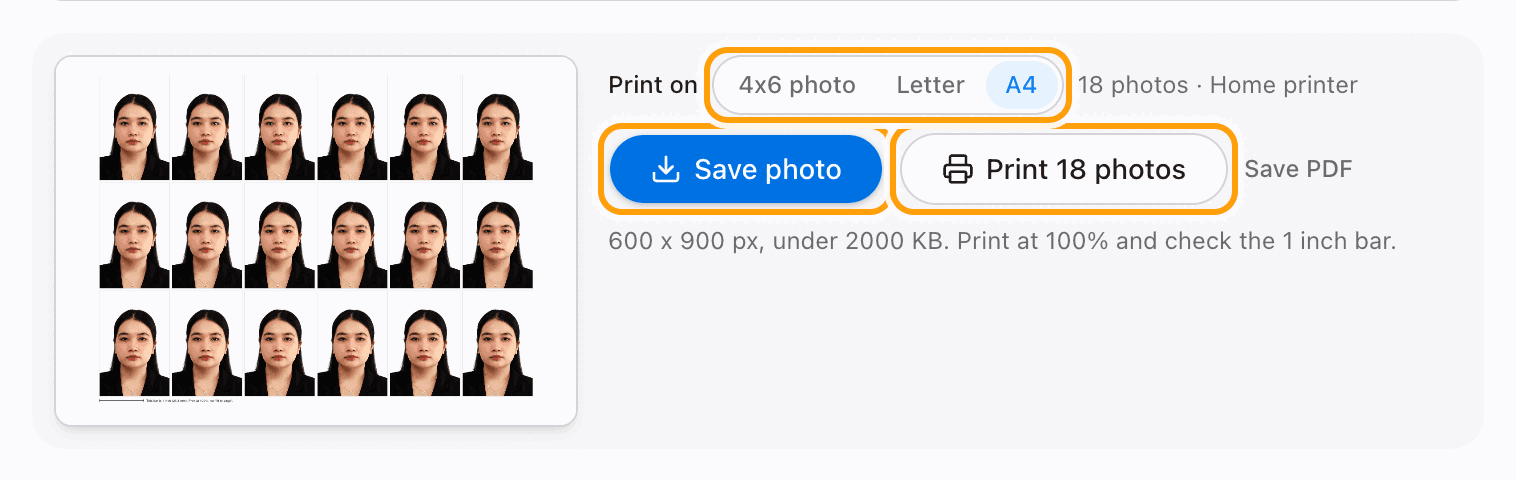
Need prints? Next to Print on, pick 4x6 photo, Letter or A4, then press Print. There is nothing to size: the page is already the paper.
Step 6
Print it
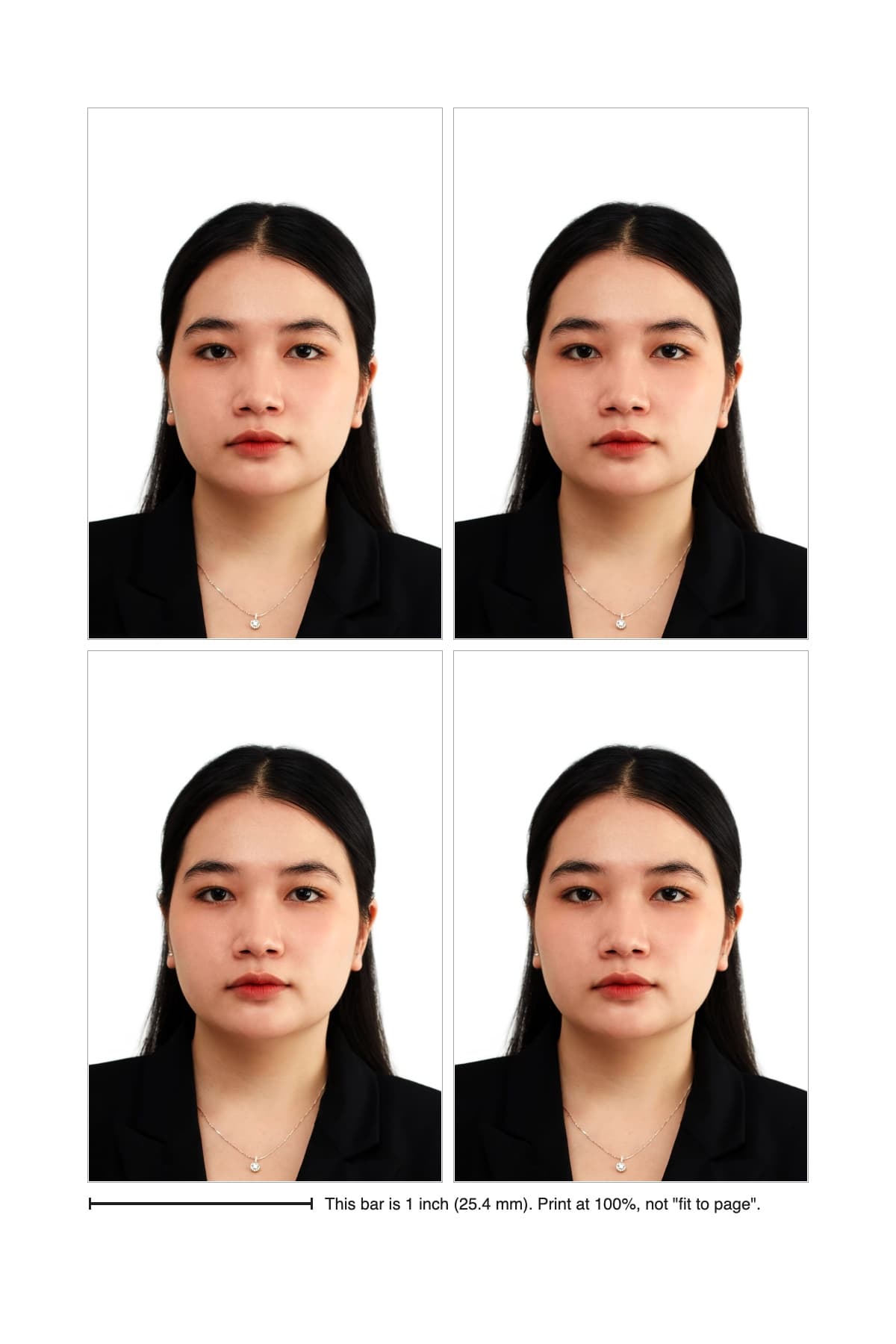
Pick the paper you have. A4 fits 18 photos and Letter fits 18, for your own printer. 4x6 photo fits 4, for a photo kiosk, which prints it for cents.
Print at 100% (Actual size). Check the 1 inch bar with a ruler, then cut along the marks. Every photo sits inside a margin, so a printer that trims the edge cannot make them smaller than 40 x 60 mm.
Vietnam e-Visa photo requirements
| Size | 4 x 6 cm |
|---|---|
| File | JPEG, 10 KB to 2 MB |
| Background | Plain white |
| Glasses | None at all, not even clear ones (since 1 July 2026) |
| Head covering | No hat |
| Pose | Face looking straight at the camera |
| Head size | Not specified officially. The tool uses 31 to 36 mm, chin to crown |
Checked against the official pages on 2026-10-20: Vietnam e-Visa portal, Circular 70/2026/TT-BCA, Government Gazette. Rules change; your passport office has the final word.
How to take the photo
Most of what a photo studio gives you is light and distance. You can get both at home in two minutes.
1
Light
Face a window in daylight. Turn off the overhead bulb and the flash: one makes a yellow cast and shadows under the eyes, the other makes red eye.
2
Distance
Ask someone to hold the phone about 1.5 m away, at your eye level, zoomed to 2x. Up close, a phone lens makes your nose look bigger. Turn portrait mode off: its blur eats the edges of your hair.
3
Wall and pose
Stand about a metre in front of a plain light wall, so your shadow falls behind you and out of the shot. Shoulders square, face the lens, mouth closed, glasses off.
What we check before you save
Up to thirteen checks, plus visible ears for the documents that ask for them, measured on your device the moment you add your photo. Each is a reason passport offices send photos back.
- 01
Face found
Nothing else works without it, so this one comes first.
- 02
Shoulders in the photo
A photo cropped tight around the head cannot be framed to the rules. Your shoulders need to reach the bottom.
- 03
Only one face
A second person in the shot, even at the edge, gets a photo rejected.
- 04
Facing the camera
A turned head is the most common reason a home photo comes back. We measure where your nose sits between your cheeks.
- 05
Shoulders square to the camera
A selfie angles the body. Both shoulders should face the lens, level.
- 06
Neutral expression
Most offices want a relaxed, closed mouth and no smile. The US passport allows a closed smile, so it skips this one.
- 07
Eyes open
Both eyes, open and visible. A blink is a retake.
- 08
Mouth closed
Offices ask for a neutral expression; a wide smile or open mouth fails.
- 09
No red eyes
Flash red-eye is a rejection reason on its own. Take it without the flash.
- 10
Even light on your face
A shadow down one side of the face hides its shape. We compare your two cheeks.
- 11
Plain background
Patterns, doors and furniture behind you are out. We measure how busy the wall is.
- 12
Sharp enough to print
Blur and blown-up small photos are caught by measuring fine detail, not just pixels.
- 13
Head straight
A tilted head is levelled for you, up to 15 degrees.
- 14
Both ears visible
Only for documents that ask for it, such as the Chinese visa. A hair model checks that hair is not covering either ear.
No tool can promise a passport office will accept a photo, and we do not. The checks tell you what to fix before you print.
Get it right first time
Glasses are out, all of them
A rule change on 1 July 2026 replaced "without sunglasses" with "no glasses". Clear prescription glasses now count too.
Never crop it from your passport scan
The portal checks whether the photo was "captured from another source" and matches your face against the passport page you upload. Use a new photo.
Too small is rejected too
Files under 10 KB come back as "image quality is too low". The saved file sits well inside the 10 KB to 2 MB window.
Your face stays on your device
Most passport photo sites upload your photo to their servers before you see a price, and keep it afterwards. This one runs in your browser: the face check, the background, the light and the print sheet all happen on your device, and the photo is never sent anywhere. It is also free, with no watermark and no account.
Questions
Can I use a photo I took myself?
Yes. You upload it on the e-Visa portal yourself. Take a fresh photo: the portal flags pictures cut out of a passport scan and compares your face with your passport.
Is my photo uploaded?
No. The crop, the background option and the print sheet all run in your browser. The photo never leaves your device.
Is it free?
Yes. No account, no watermark, no limit.
Can it change my background?
Yes. Pick White, Off-white, Light grey, Cream or Light blue and you are cut out and placed on it, in your browser. A tick marks the colours your document accepts. Some offices, the US and UK among them, prefer an unedited photo, so if your wall is already plain, keep Original.
Other passport and visa photos
- US passport photo
- US visa photo (DS-160)
- Green card lottery (DV) photo
- UK passport photo
- Schengen visa photo
- Indian passport photo
- Indian visa photo
- OCI card photo
- Chinese visa photo
- Thailand e-Visa photo
- Indonesia e-VOA photo (Bali)
- German passport photo
- Canadian passport photo
- 2 x 2 inch photo
- 35 x 45 mm photo
- 4x6 passport photo print